Platform Assembly
This guide describes the complete assembly process for the UT AMRL RoboRacer autonomous vehicle platform. By the end of this guide, you will have a fully assembled 1/10th scale autonomous car equipped with a BLDC motor, VESC motor controller, Jetson Orin Nano, Hokuyo LiDAR, IMU, Raspberry Pi camera, and a mounted display.
These steps have been completed for you
Prior to the FRI course, these steps have been completed for you, but are included here for completeness.
Estimated Assembly Time: 2–3 hours
Required Tools
- Soldering iron and solder
- M2.5, M3, and M5 Allen key set
- M3 and M5 tap and tap handle
- Wire strippers
- Heat shrink tubing and heat gun
- Phillips screwdriver
Safety Precautions
- LiPo batteries are a fire hazard if punctured or short-circuited. Always disconnect the battery before working on wiring.
- Soldering should be performed in a well-ventilated area. Avoid contact with the iron tip and hot joints.
- High-current connectors (TRX, bullet connectors) can arc if shorted. Double-check polarity before making any power connections.
Bill of Materials
TODO
Power Board
TODO: Soldering PCB
Flashing VESC
TODO
Flashing Orin
TODO
Chassis and Motor
Step 1: Strip the Chassis
Remove all stock components from the chassis, including the original motor and all associated screws. Leave the steering servo installed.
Step 2: Install Standoff Mounting Screws
Insert flipped M3 × 10 mm socket head cap screws into the chassis at each standoff location, as shown below.
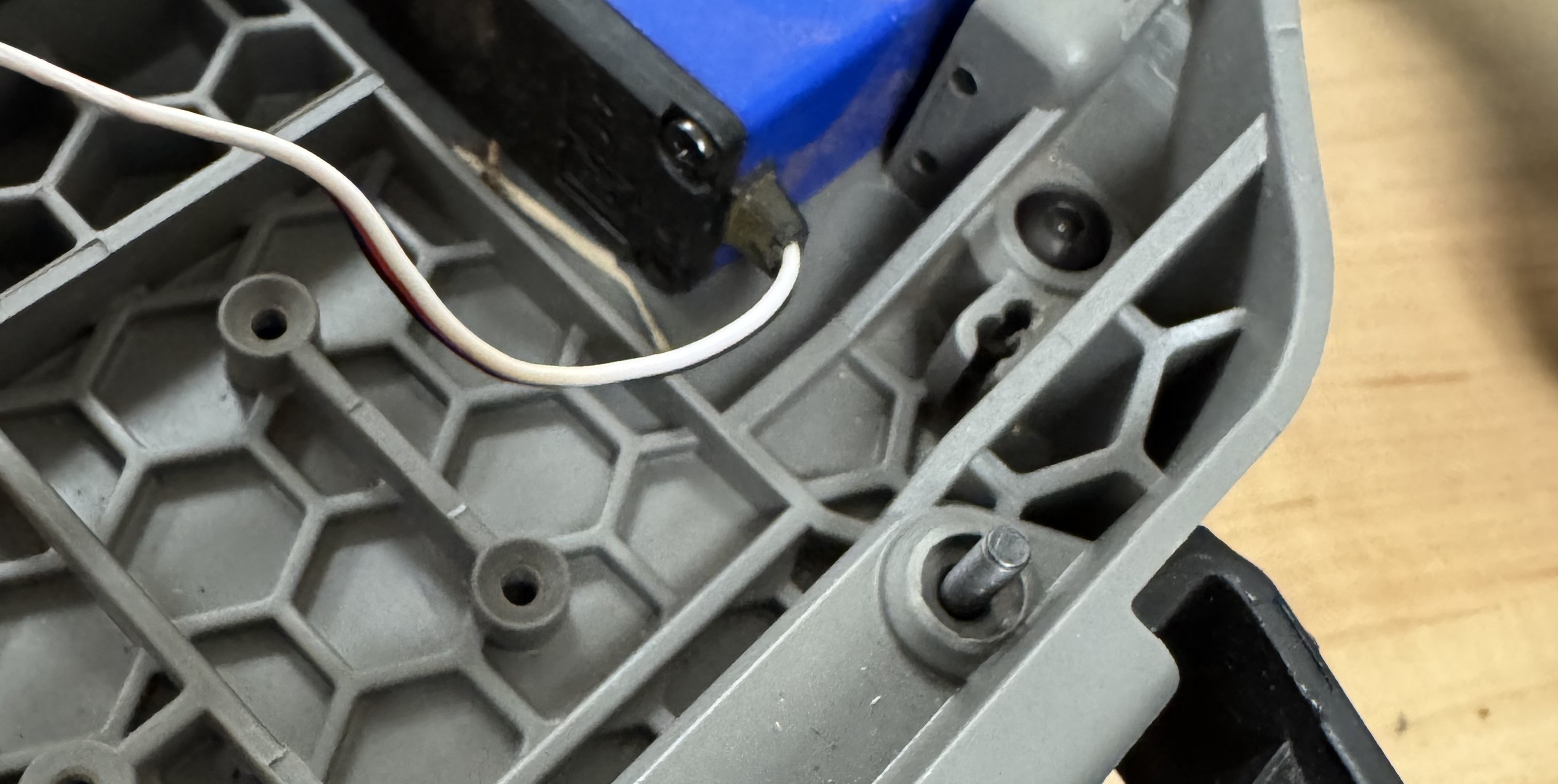 Figure 1: Orientation of the flipped M3 × 10 mm screws
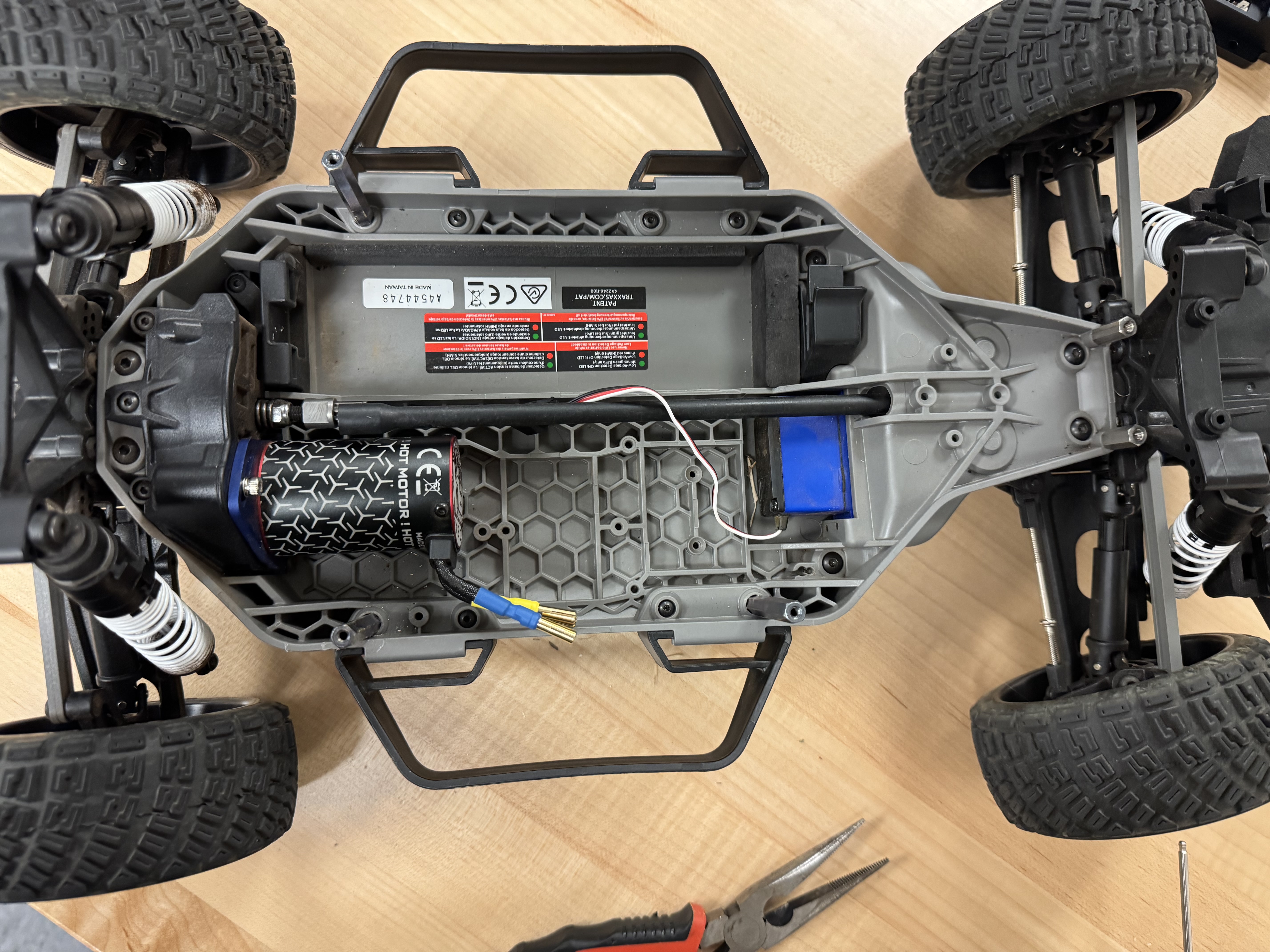 Figure 2: Standoff placement
Step 3: Attach Standoffs
Screw in standoffs in the location of the flipped screws above, and two M3 × 14 mm × 5 mm male-to-female standoff seen at the bottom of figure 2.
Step 4: Mount the Motor
Attach the new AR390228 BLX 3656 3S BLDC motor to the chassis using a washer and an M3 × 16 mm socket head cap screw at the designated motor mount.
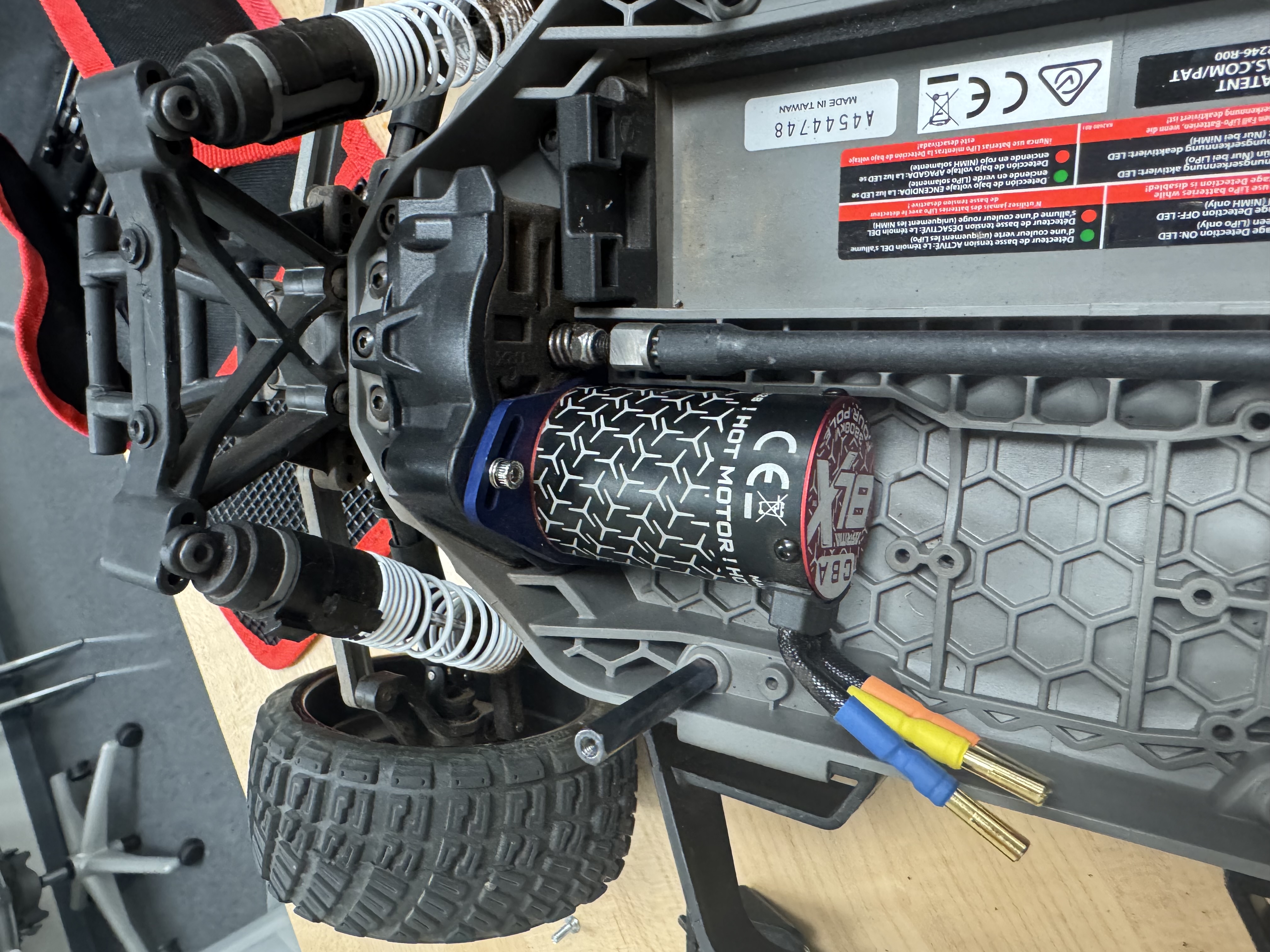 Figure 3: BLDC motor mounted to the chassis.
VESC Motor Controller
Step 1: Solder Bullet Connectors
On the three wires extending from the MOSFETs on the VESC, solder 4 mm female gold bullet connectors (C131-20) to the opposite ends. Apply heat shrink tubing over each solder joint.
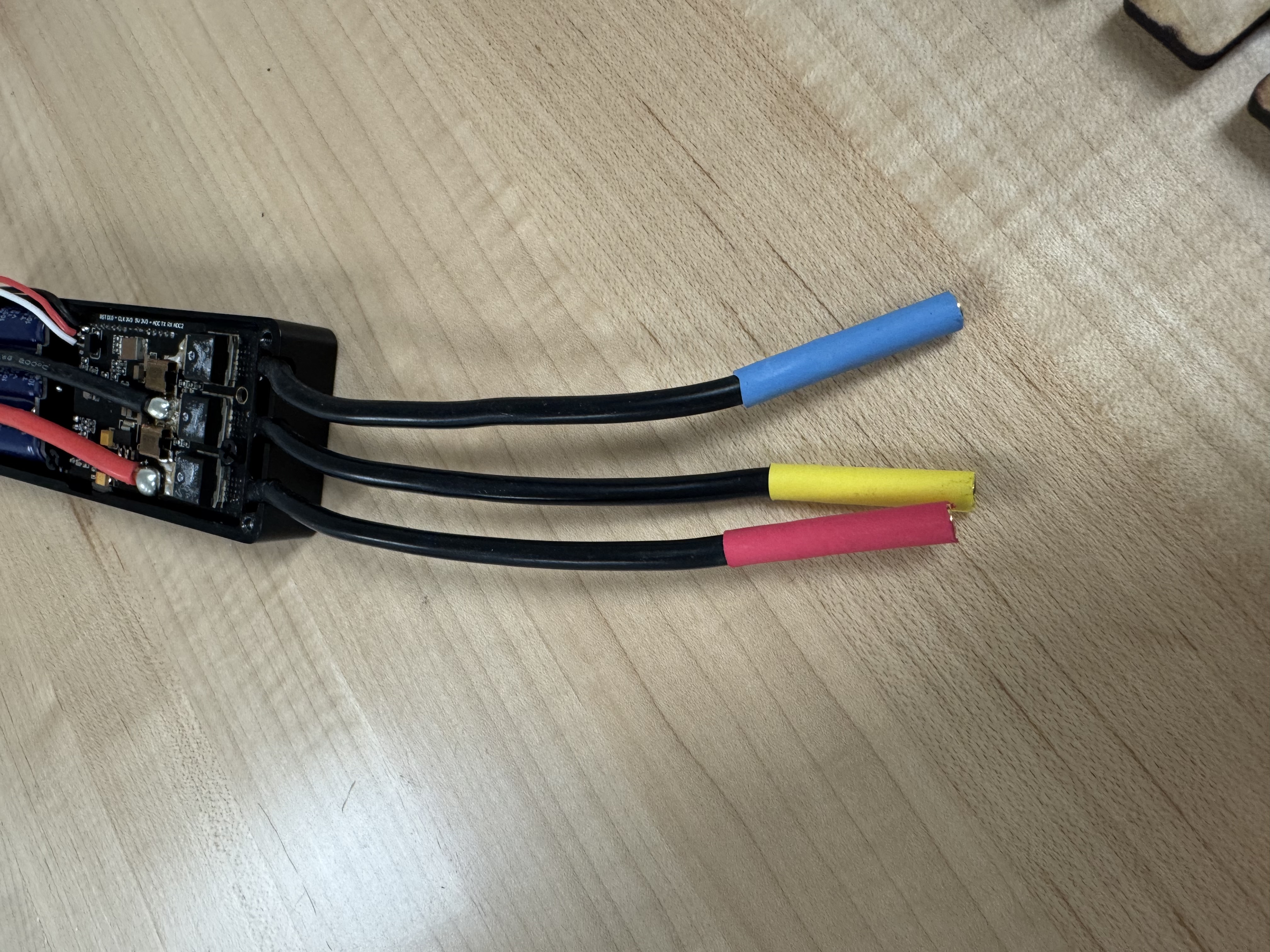 Figure 4: 4 mm female gold bullet connectors soldered to VESC motor output wires.
Step 2: Solder TRX Connectors
Solder the two remaining power wires on the opposite side of the VESC to female TRX connectors. Refer to this for soldering TRX connectors.
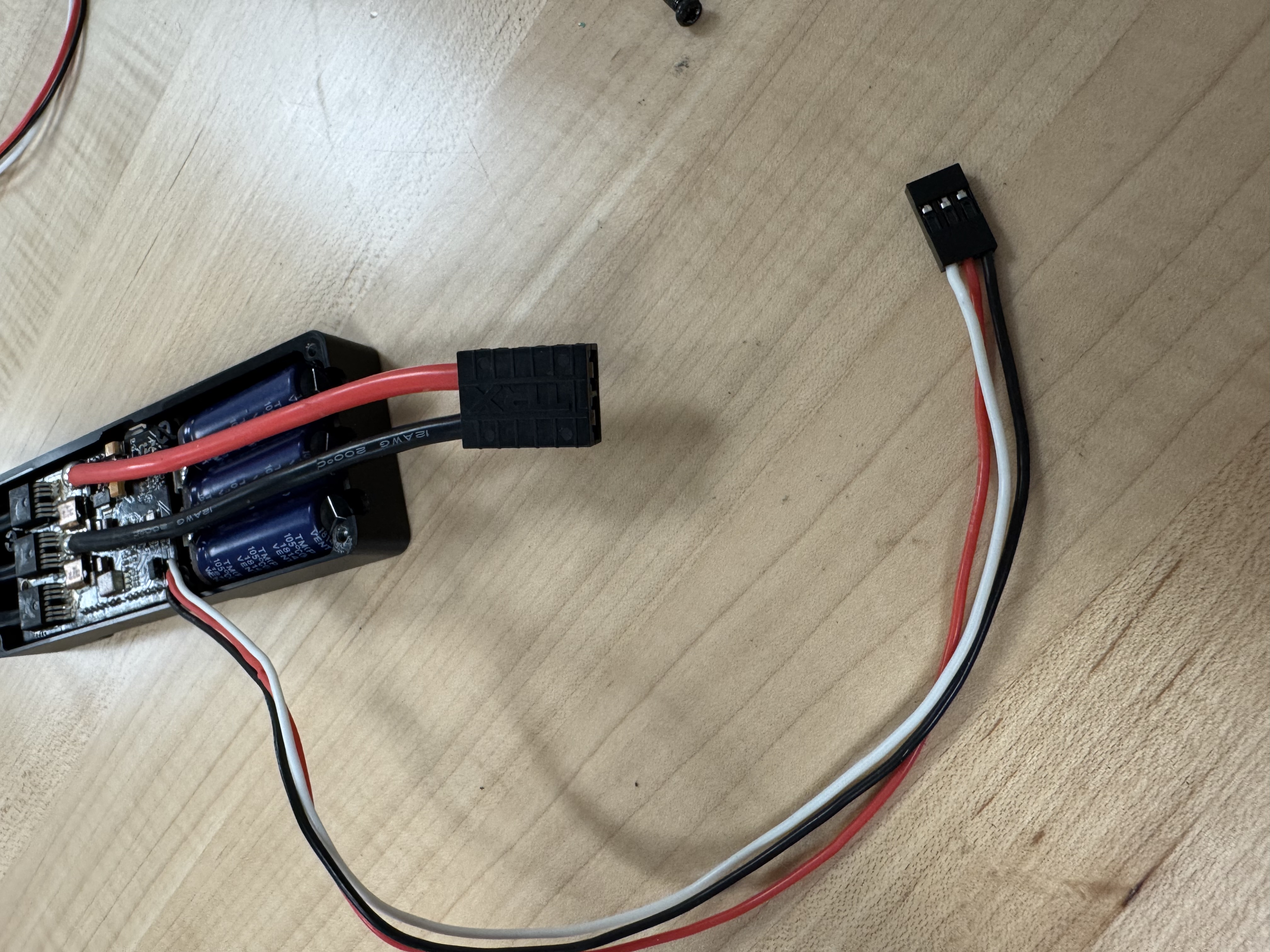 Figure 5: Female TRX connectors soldered to VESC power input wires.
Step 3: Install JST Connector
TODO: Solder a JST-SM 3-pin connector onto the remaining cables from the VESC.
Step 4: Prepare the Motor Controller Case
Remove all inner and outer screws from the motor controller case.
Step 5: Seat the VESC in the Case
Insert the VESC into the case, ensuring that the MOSFETs rest flat on the thermal cushions inside the enclosure.
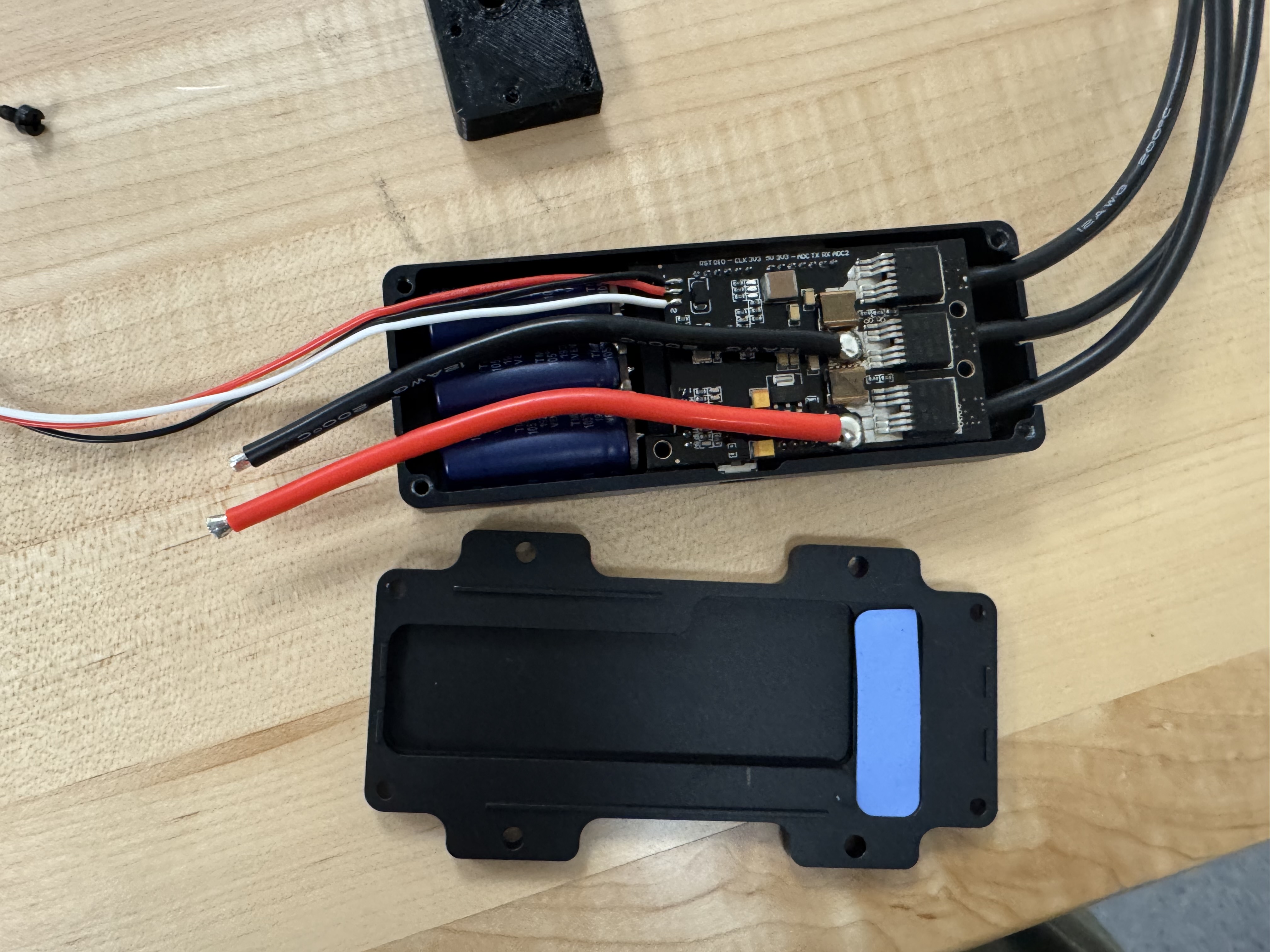 Figure 6: VESC seated inside the motor controller case with MOSFETs resting on thermal cushions.
Step 6: Secure the VESC
Fasten the VESC to the case using the provided M3 × 8 mm screws on the inner mounting holes. Take care not to pinch any wires. Then attach the case cover using the provided M3 × 8 mm screws on the outer holes.
Step 7: Connect the USB Cable
Plug the Mini-USB end of a Mini-USB to USB cable into the VESC.
Step 8: Mount the Controller to the Plate
Tap the four outermost holes on the motor controller case for M5 screws. Secure the motor controller to the wooden mounting plate using M5 × 12 mm flat head socket cap screws.
Your bottom plate assembly should now look like this:
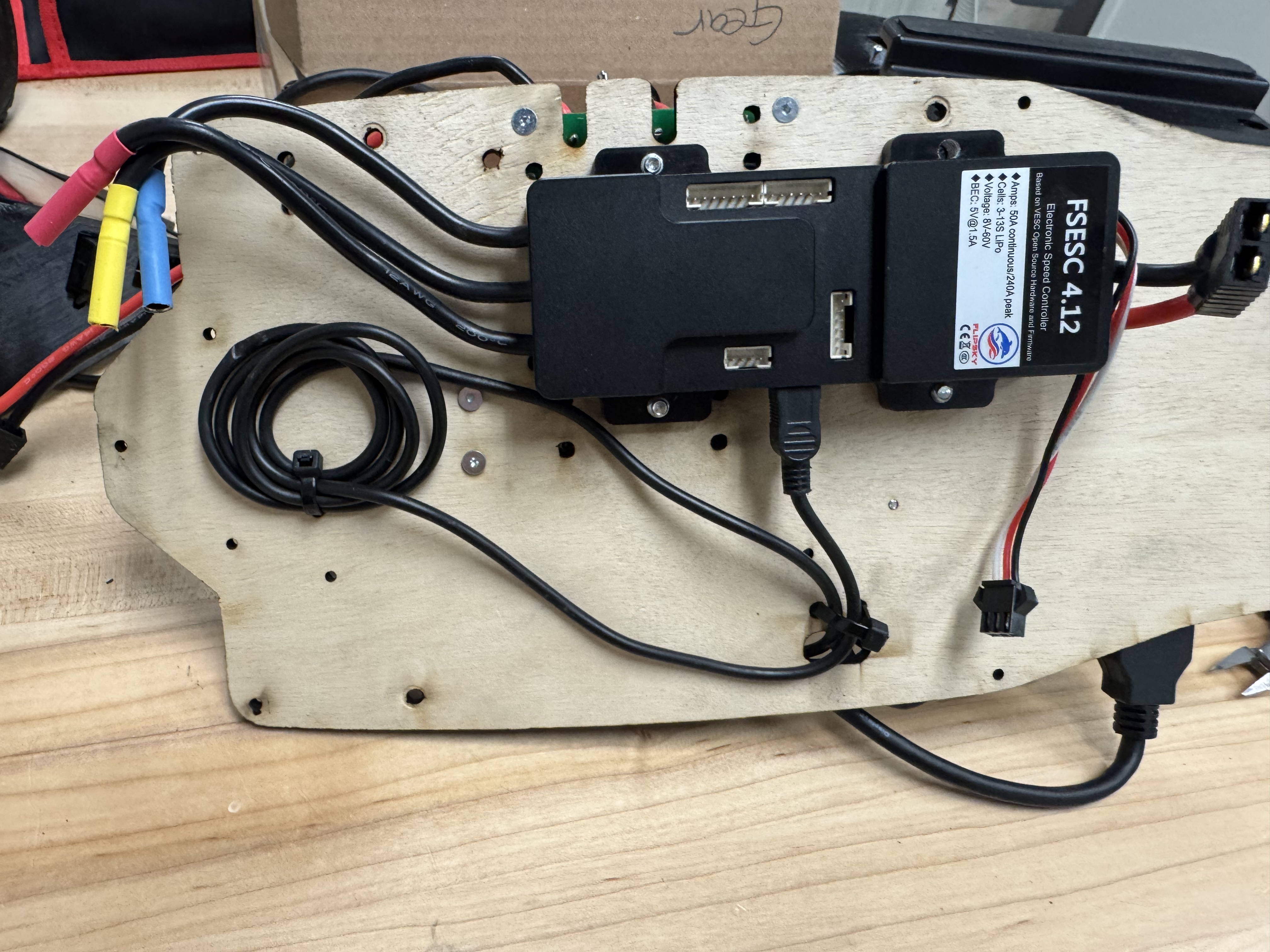 Figure 7: VESC motor controller mounted to the bottom plate.
Wiring
Step 1: Prepare the LiDAR Power Cable
On the Hokuyo LiDAR's 6-pin JST connector cable, remove all wires except the brown (12V) and blue (GND) leads. Strip the wire ends and connect them to the corresponding terminals on the power board, in the screw terminal block labeled LiDAR.
Step 2: Prepare the Jetson Power Cable
Strip the leads of a 2.5 mm × 5.5 mm DC barrel jack pigtail and connect them to the corresponding terminals on the power board, in the screw terminal block labeled JETSON.
Step 3: Prepare Battery and VESC Power Cables
Create two 14 AWG pigtails with male TRX connectors (refer to the soldering demonstration linked above). Connect them to the corresponding terminals on the power board, in the screw terminal blocks labeled BAT and VESC.
Your completed power board wiring should look like the following:
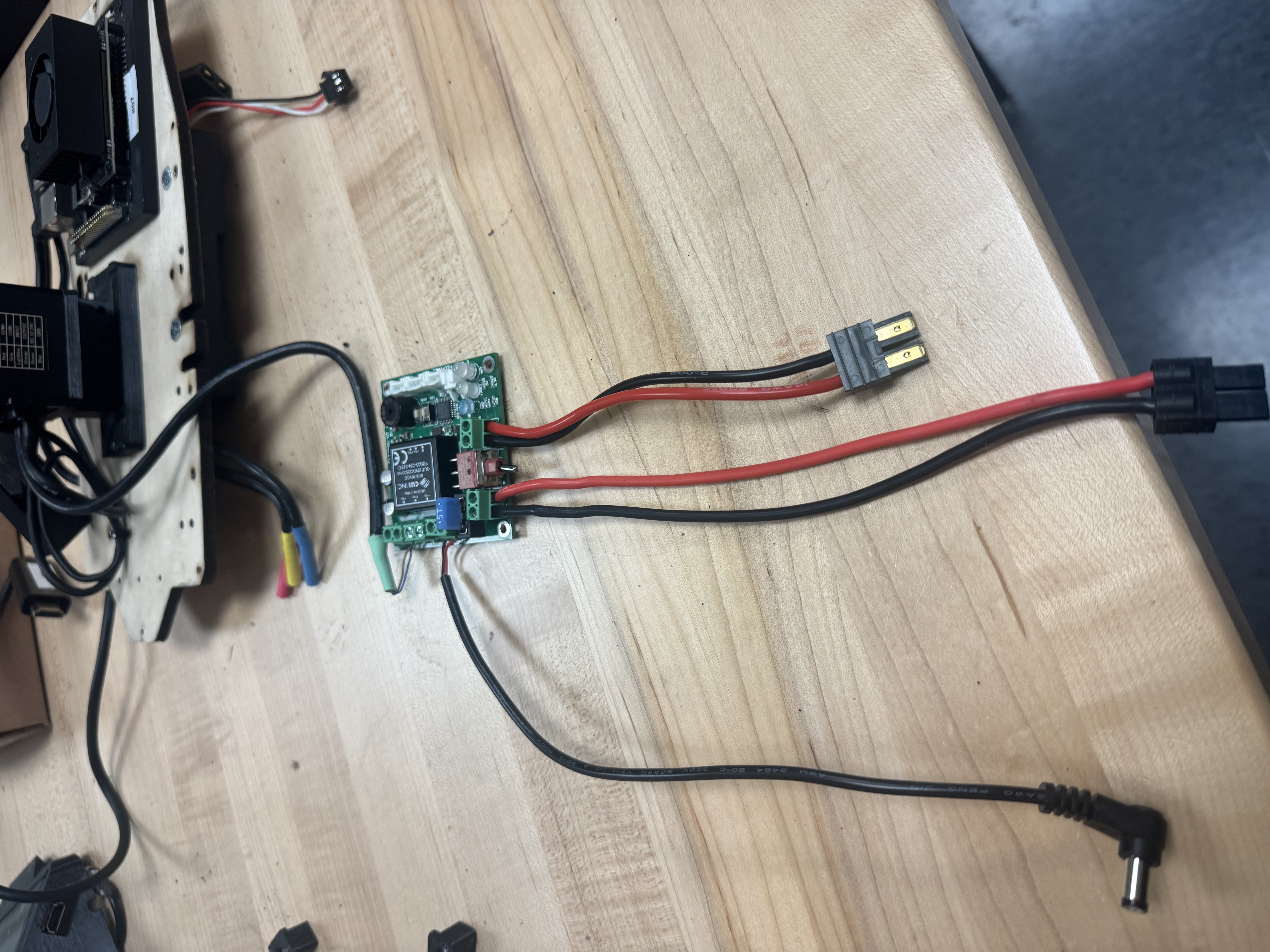 Figure 8: Completed power board wiring (front view).
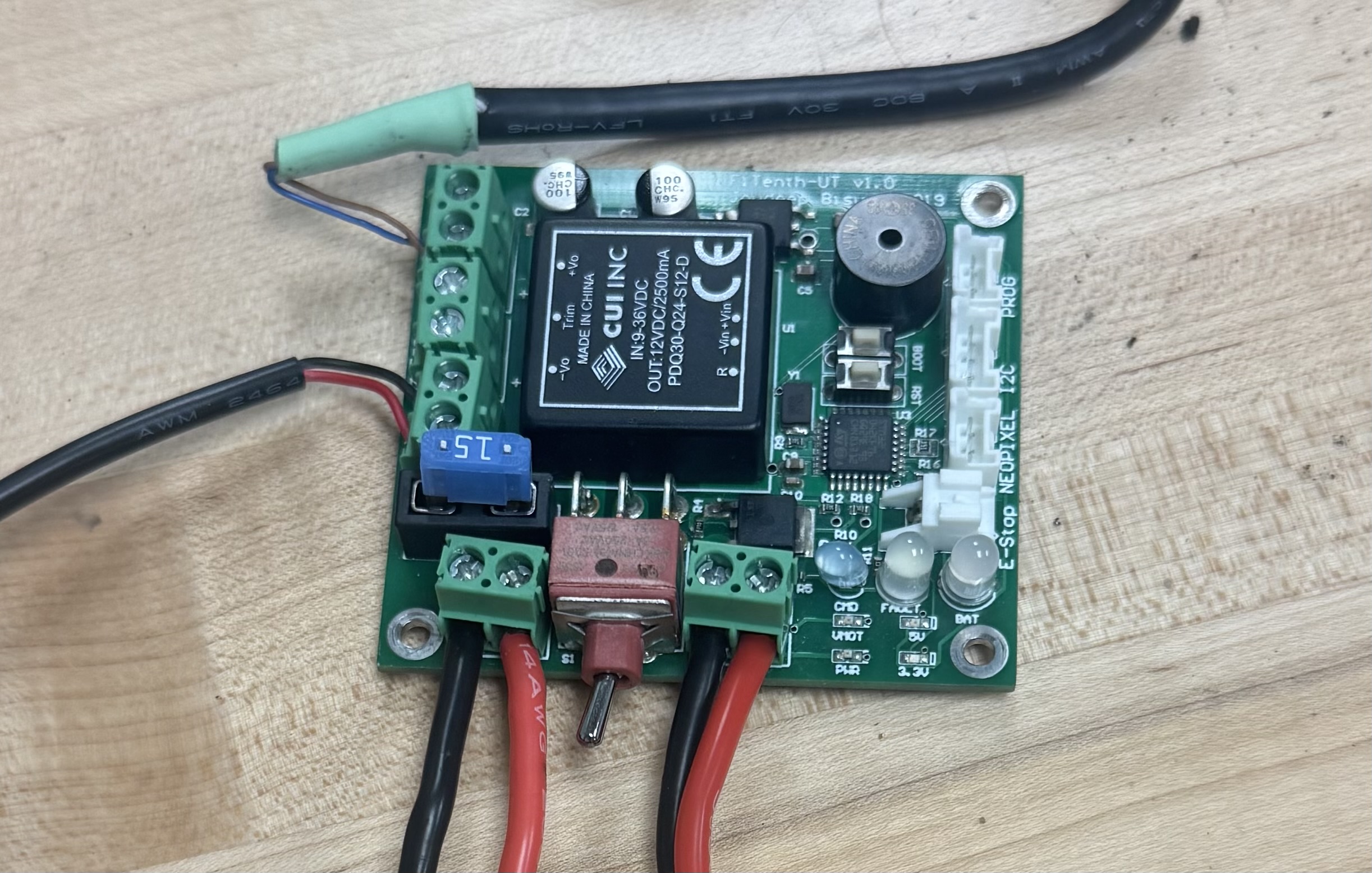 Figure 9: Completed power board wiring (complete view).
Mounting
Step 1: Prepare the LiDAR Mount
Tap the two corner holes on the Hokuyo LiDAR with an M3 tap. Attach the 3D-printed LiDAR adapter piece using M3 × 8 mm Allen flat head screws.
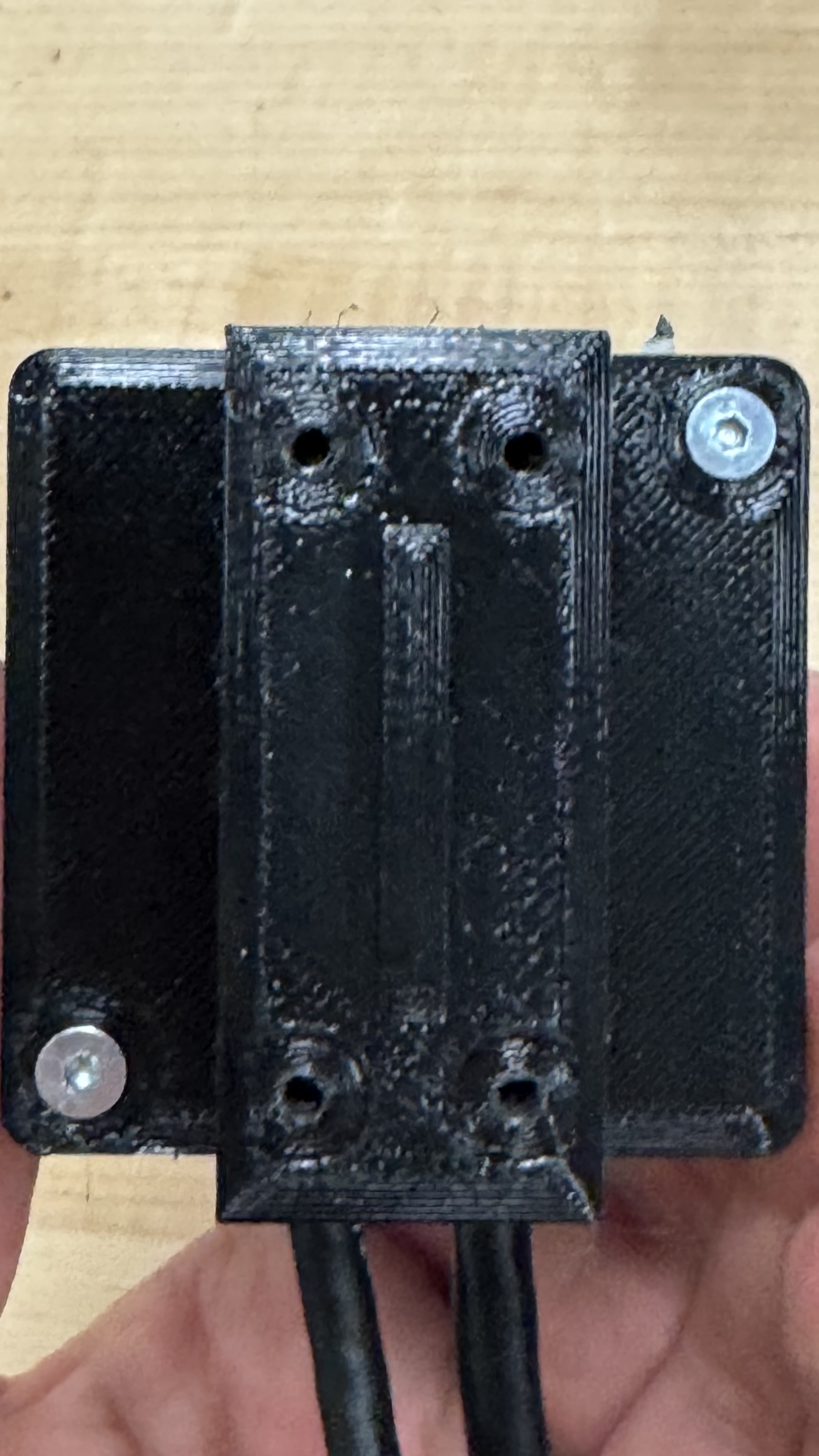 Figure 10: 3D-printed adapter attached to the LiDAR.
Step 2: Assemble the LiDAR Mount Base
Tap the four corner holes on the bottom of the 3D-printed adapter piece and the corresponding holes on the base mount. Attach the two pieces together using four M3 × 8 mm Allen flat head screws.
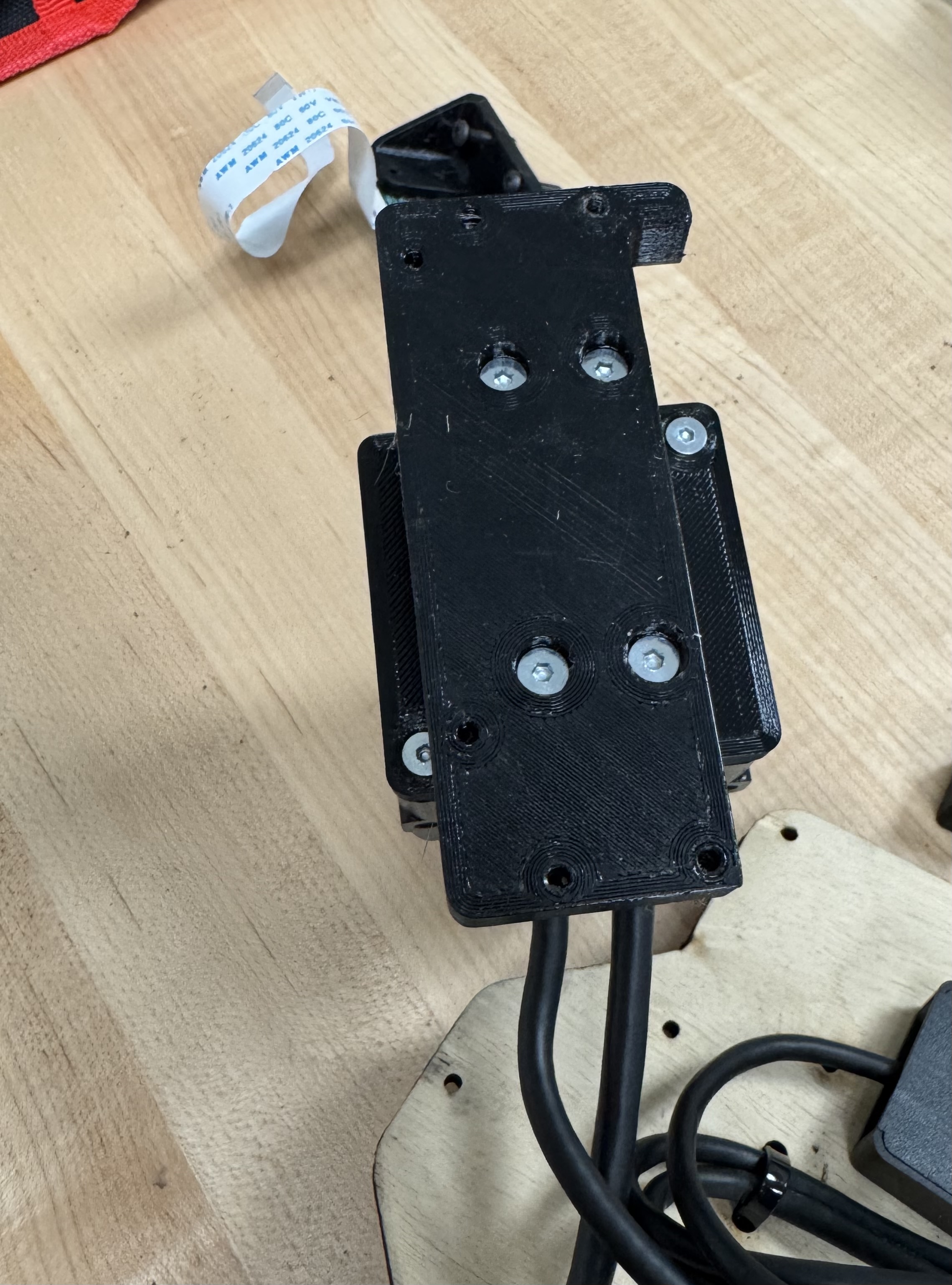 Figure 11: LiDAR adapter assembled with base mount.
Step 3: Attach the LiDAR Assembly to the Plate
Secure the assembled LiDAR mount to the mounting plate using M3 screws from the bottom.
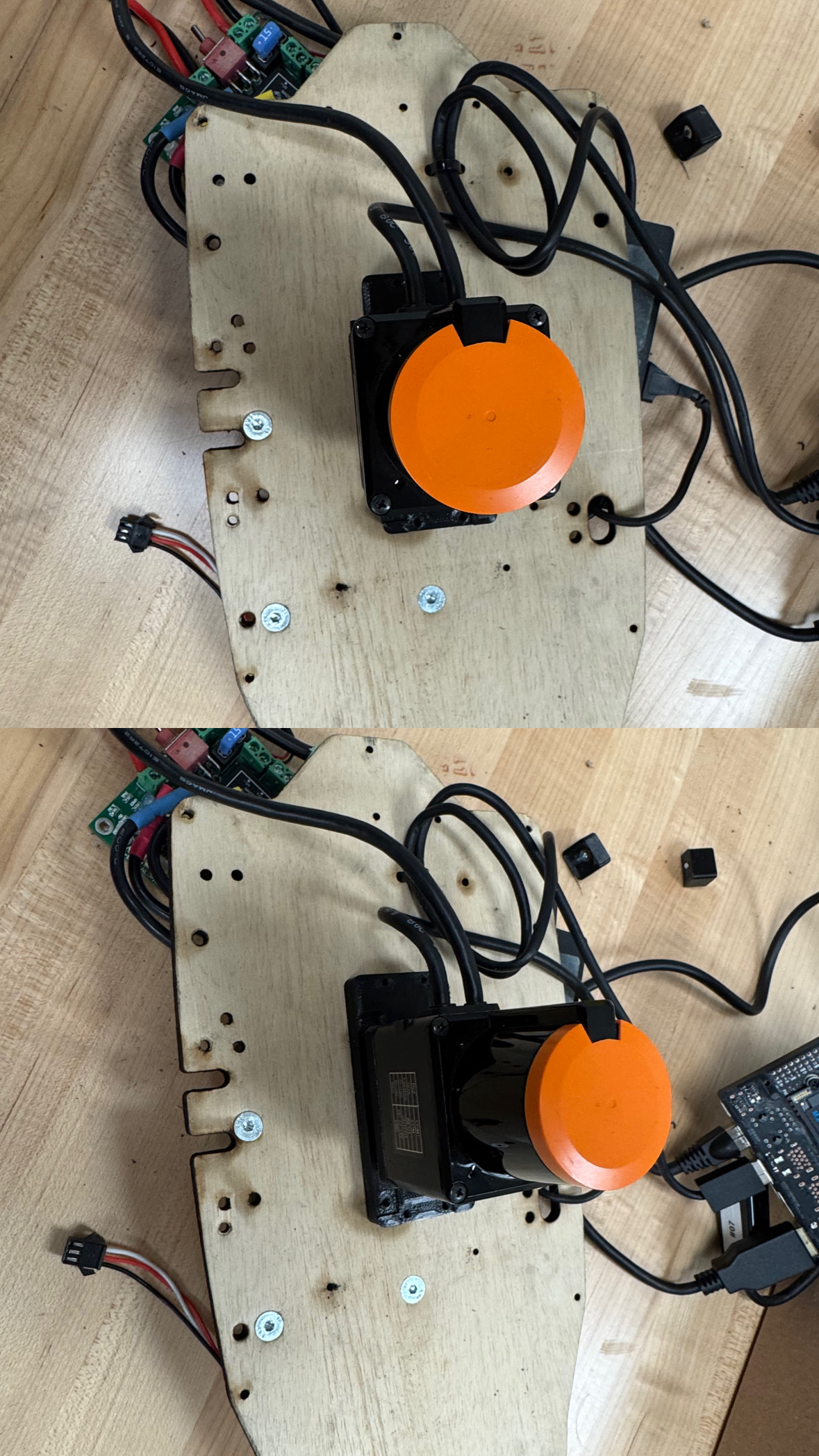 Figure 12: LiDAR assembly mounted to the plate.
Step 4: Mount the Jetson Orin Nano
Attach the Jetson Orin Nano to the plate using M2.5 × 11 mm socket head cap screws at the designated mounting holes.
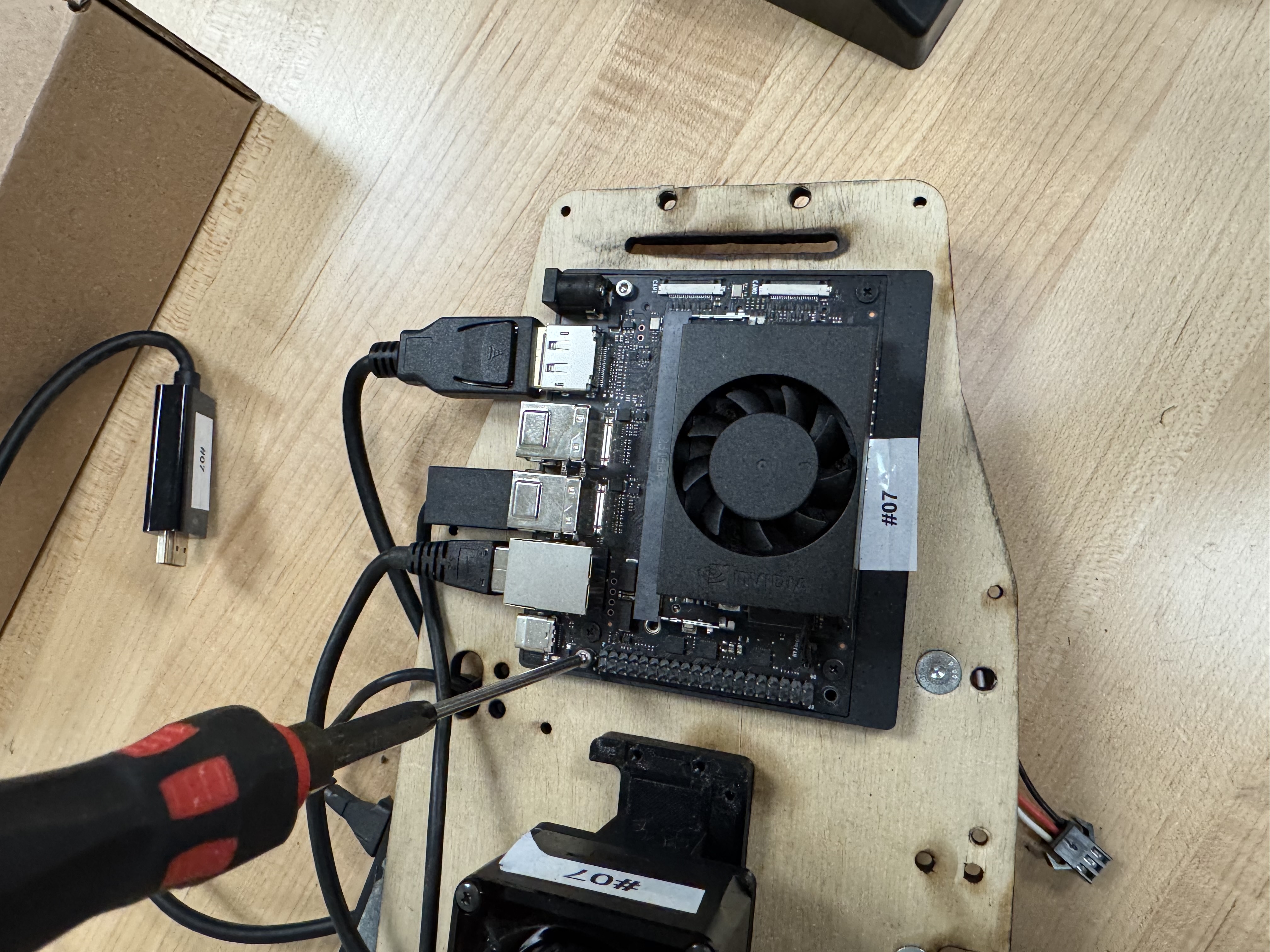 Figure 13: Jetson Orin Nano mounted to the plate.
Step 5: Prepare the Power Board Standoffs
Thread two 8 mm female-to-female standoffs onto the bottom of the power board using M3 × 6 mm pan head screws, in the holes located on either side of the BAT and VESC terminal blocks.
Step 6: Mount the Power Board
Attach the power board to the plate as follows:
- Secure the two holes without standoffs to the Orin's 3D-printed mount using M3 screws.
- Secure the standoff side by threading M3 flat head screws through the bottom of the plate into the standoffs.
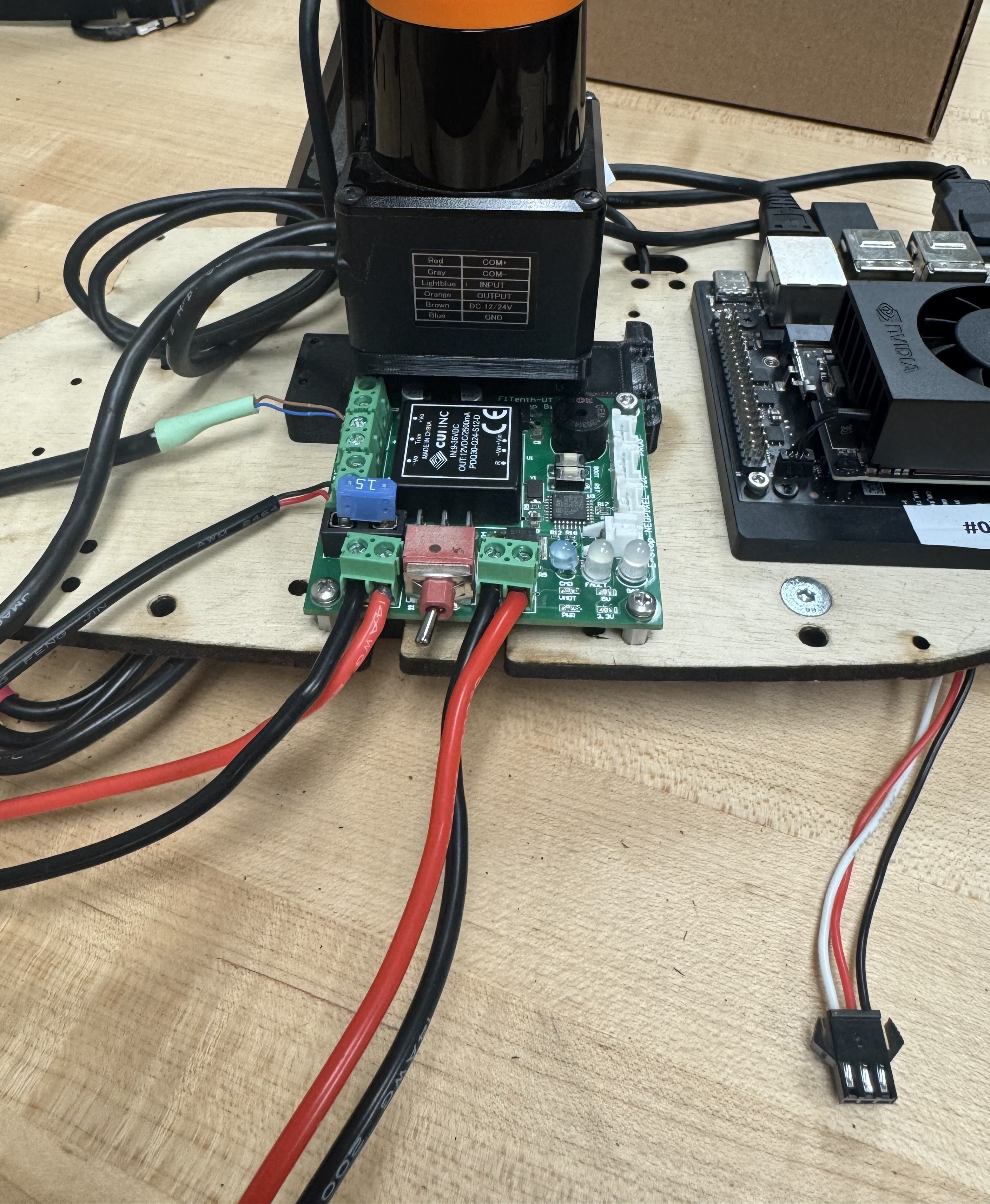 Figure 14: Power board mounted to the plate.
Step 7: Mount the IMU
Attach the MPU6050 IMU to the last two holes of the 3D-printed LiDAR mount (nearest to the Jetson) using M3 × 4 mm flat head screws. Connect the IMU to the Jetson Orin Nano using female-to-female jumper wires with the following pin mapping:
| IMU Pin | Jetson Pin Number |
|---|---|
| VCC | 1 |
| GND | 3 |
| SCL | 5 |
| SDA | 6 |
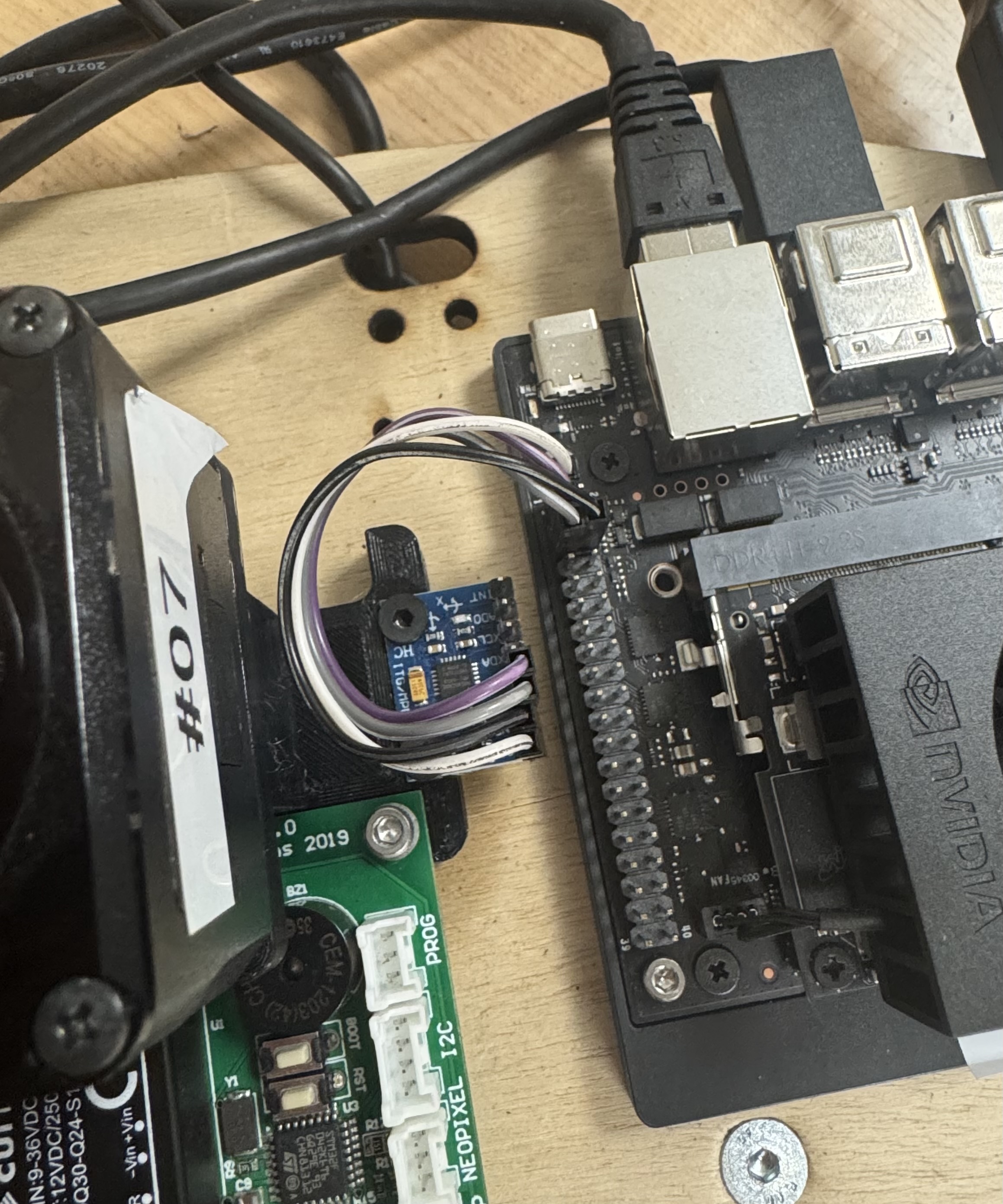 Figure 15: IMU mounted and wired to the Jetson.
Step 8: Mount the USB Hub
Place the USB hub in the gap on the opposite side of the LiDAR mount. Secure it to the plate using the two 3D-printed clamps, screwing the clamps into the plate.
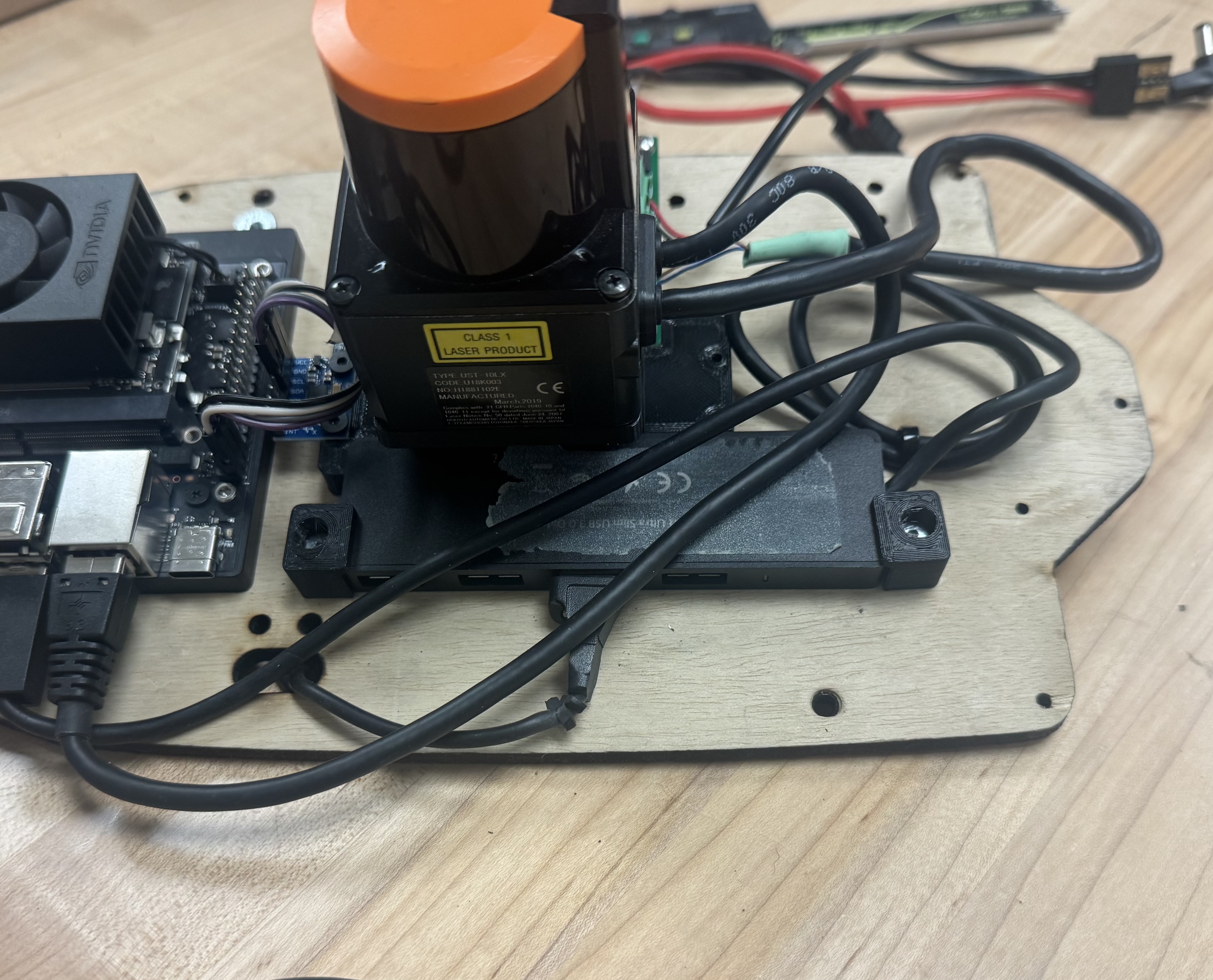 Figure 16: USB hub secured to the plate with 3D-printed clamps.
Connecting
With all components mounted, make the following connections:
- Connect the VESC TRX connector from the power board to the TRX connector coming from the VESC on the underside of the plate.
- Connect the Jetson barrel jack from the power board to the Orin Nano's power input.
- Connect the LiDAR Ethernet cable to the Jetson Orin Nano's Ethernet port.
- Connect the USB hub to the Jetson using the hub's attached USB cable.
- Connect one end of an HDMI cable to the Jetson.
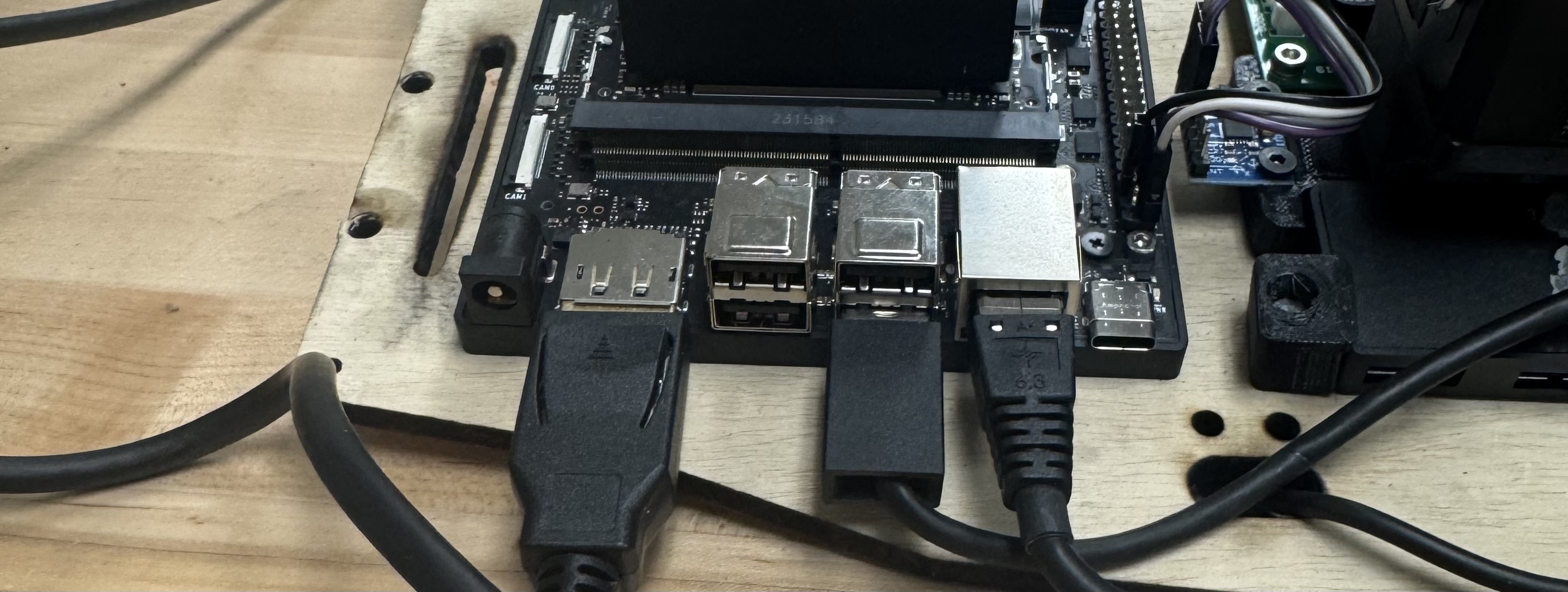 Figure 17: All cable connections on the Jetson side of the plate.
Camera
Step 1: Attach the Camera to the Mount
Secure the Raspberry Pi camera to the flat side of the 3D-printed camera mount using M2 × 4 mm flat head countersunk screws.
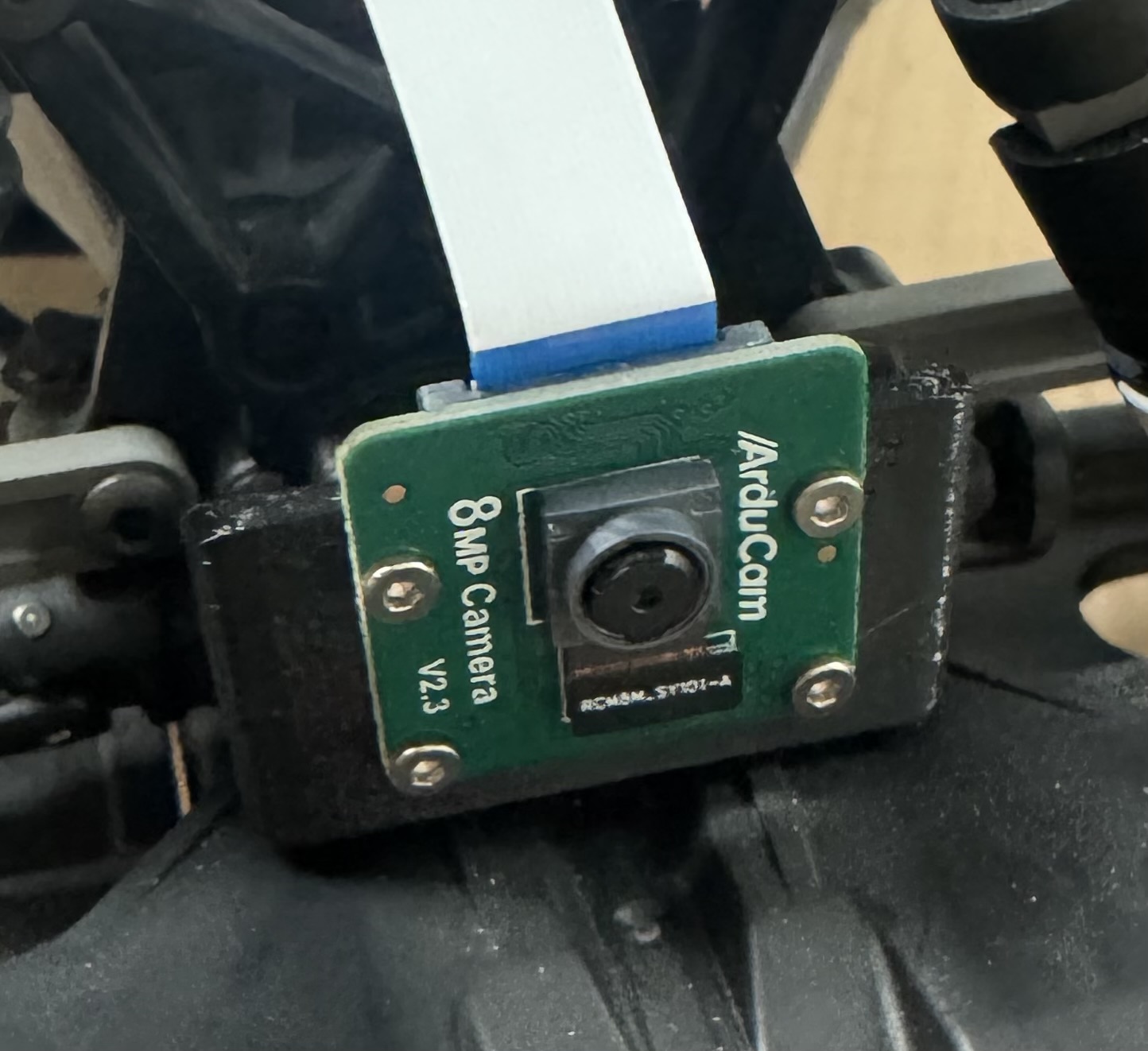 Figure 18: Camera attached to the 3D-printed mount.
Step 2: Mount to the Car
Attach the camera mount to the front of the chassis using M3 × 16 mm pan head screws.
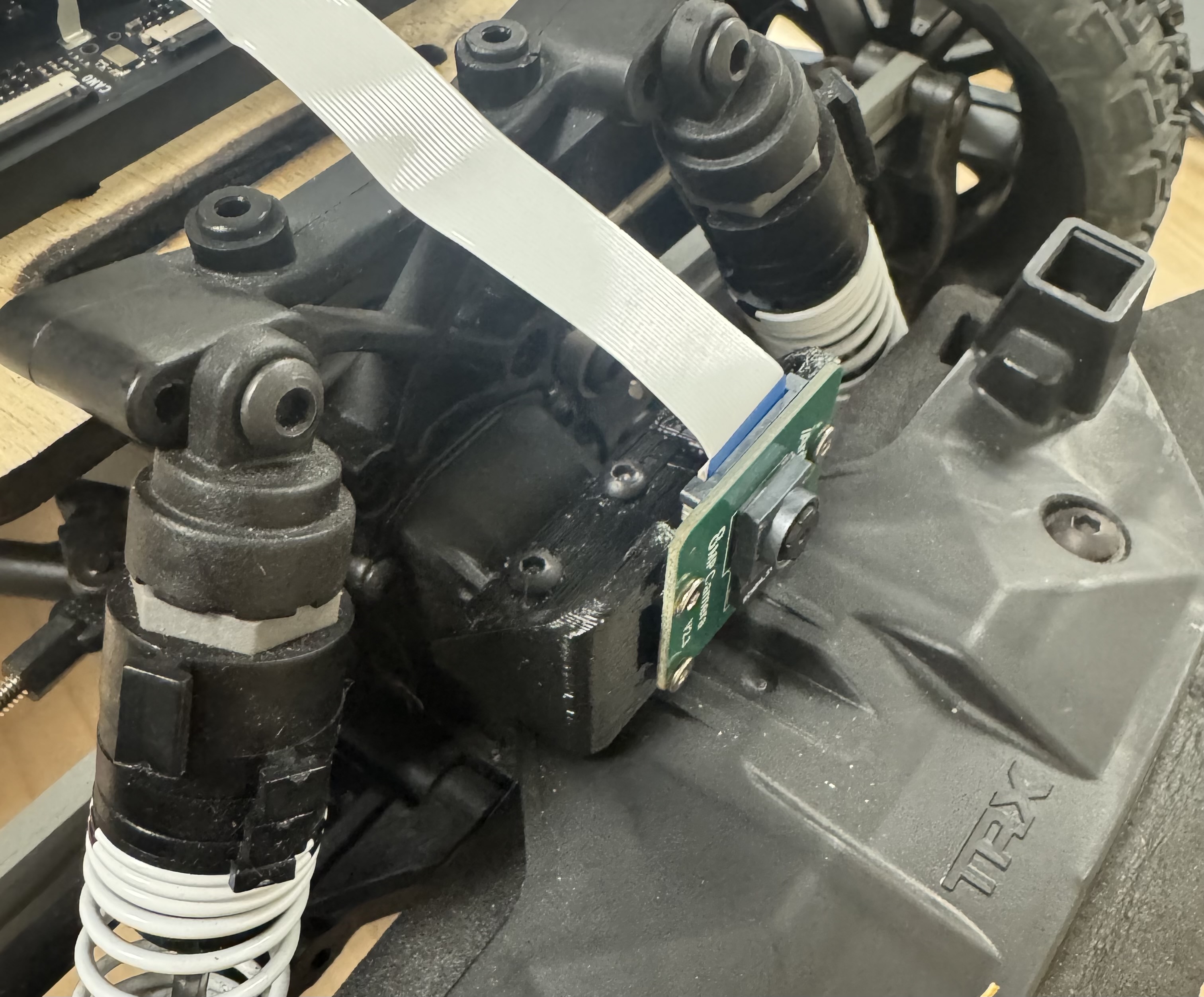 Figure 19: Camera mount secured to the front of the chassis.
Step 3: Install the Cover
Slide the 3D-printed cover over the camera mount.
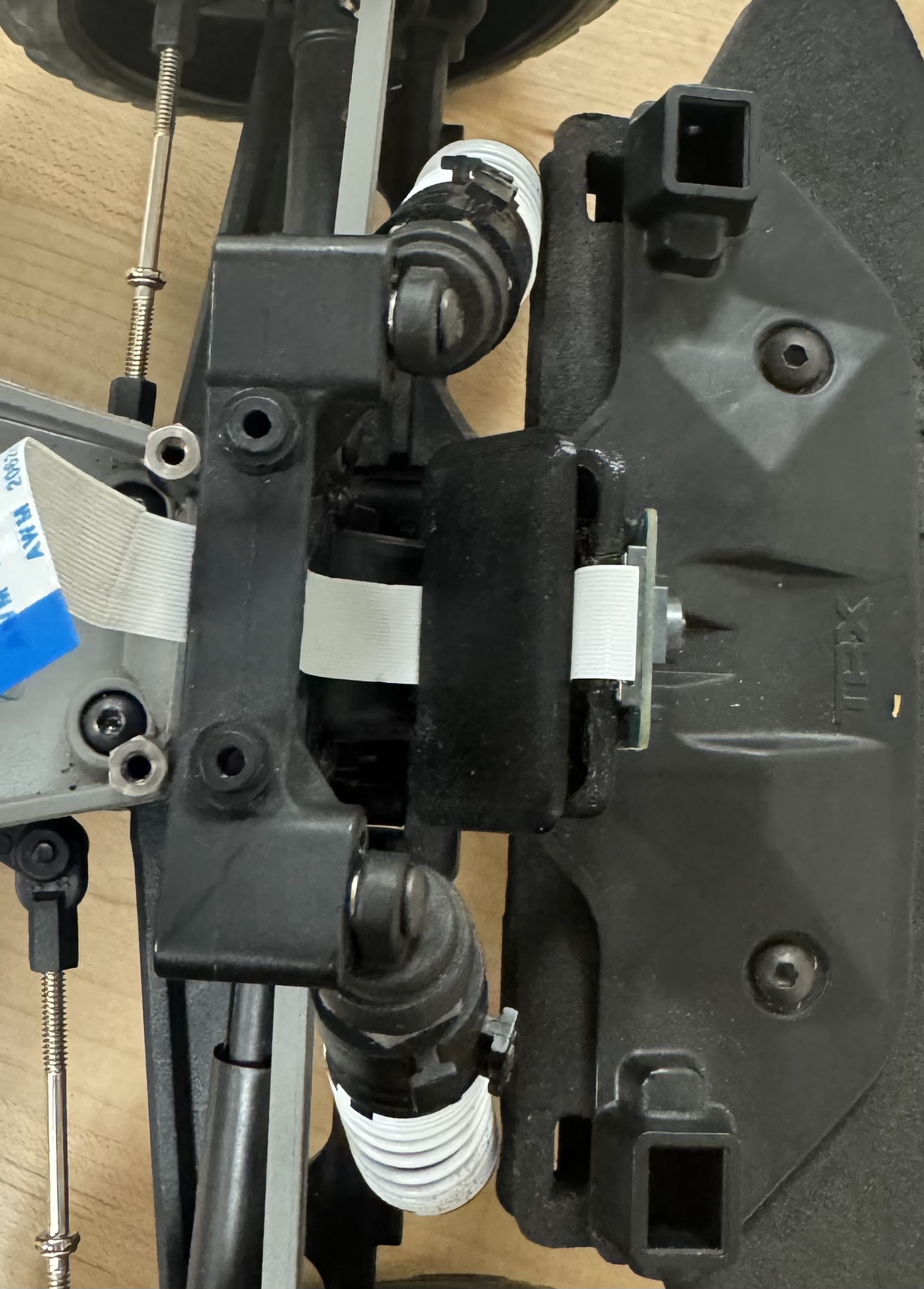 Figure 20: Camera cover installed.
Mounting Plate
Step 1: Attach the Plate to the Chassis
Align the mounting plate with the standoffs installed at the beginning of the chassis assembly. Secure the plate using M3 × 8 mm flat head countersunk screws.
Step 2: Route the Battery Cable
Cross the TRX connector from the BAT terminal on the power board over to the opposite side of the plate, routing it underneath. The battery will sit in the empty gap in the chassis.
Step 3: Connect the Motor
Connect the gold bullet connectors from the VESC to the BLDC motor leads. Connect the JST-SM 3-pin connector from the VESC to the servo on the chassis.
Step 4: Connect the Camera Cable
Connect the Raspberry Pi camera ribbon cable to the CAM0 port on the Jetson, sliding the cable through the slit in the mounting plate.
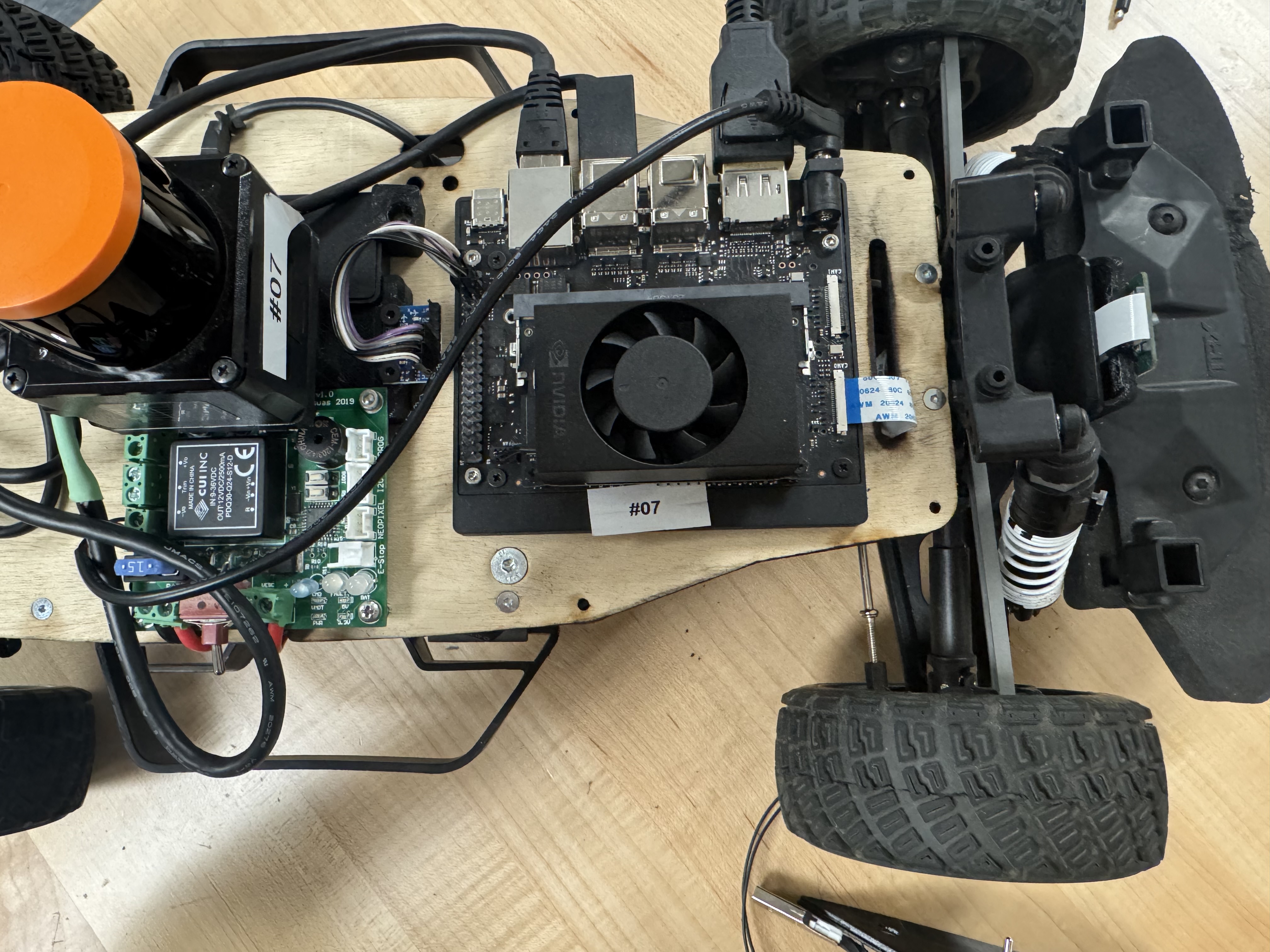 Figure 21: Camera ribbon cable routed through the plate and connected to the Jetson.
Screen
Step 1: Prepare the Screen Mount
TODO: Solder the switch and attach it to the 3D-printed screen mount.
Step 2: Install Mounting Screws
Thread two M3 screws into the screen's mounting holes, leaving the threads extending outward as shown below.
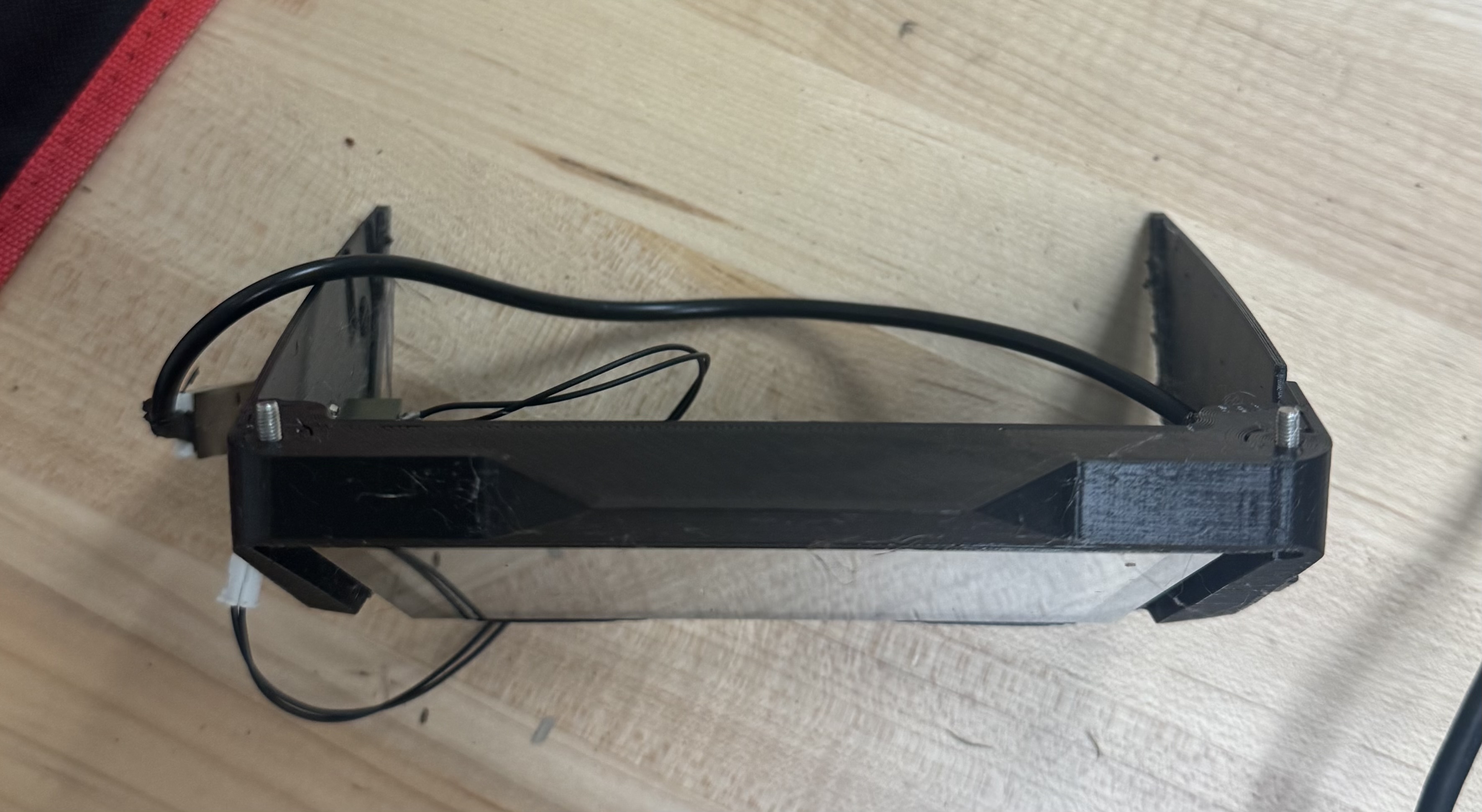 Figure 22: M3 mounting screws installed in the screen.
Step 3: Connect the Screen USB
Connect the Micro-USB end of a USB cable to the screen.
Step 4: Attach the Screen to the Mount
Place the screen on the 3D-printed mount, aligning the ports. Secure with the M3 screws.
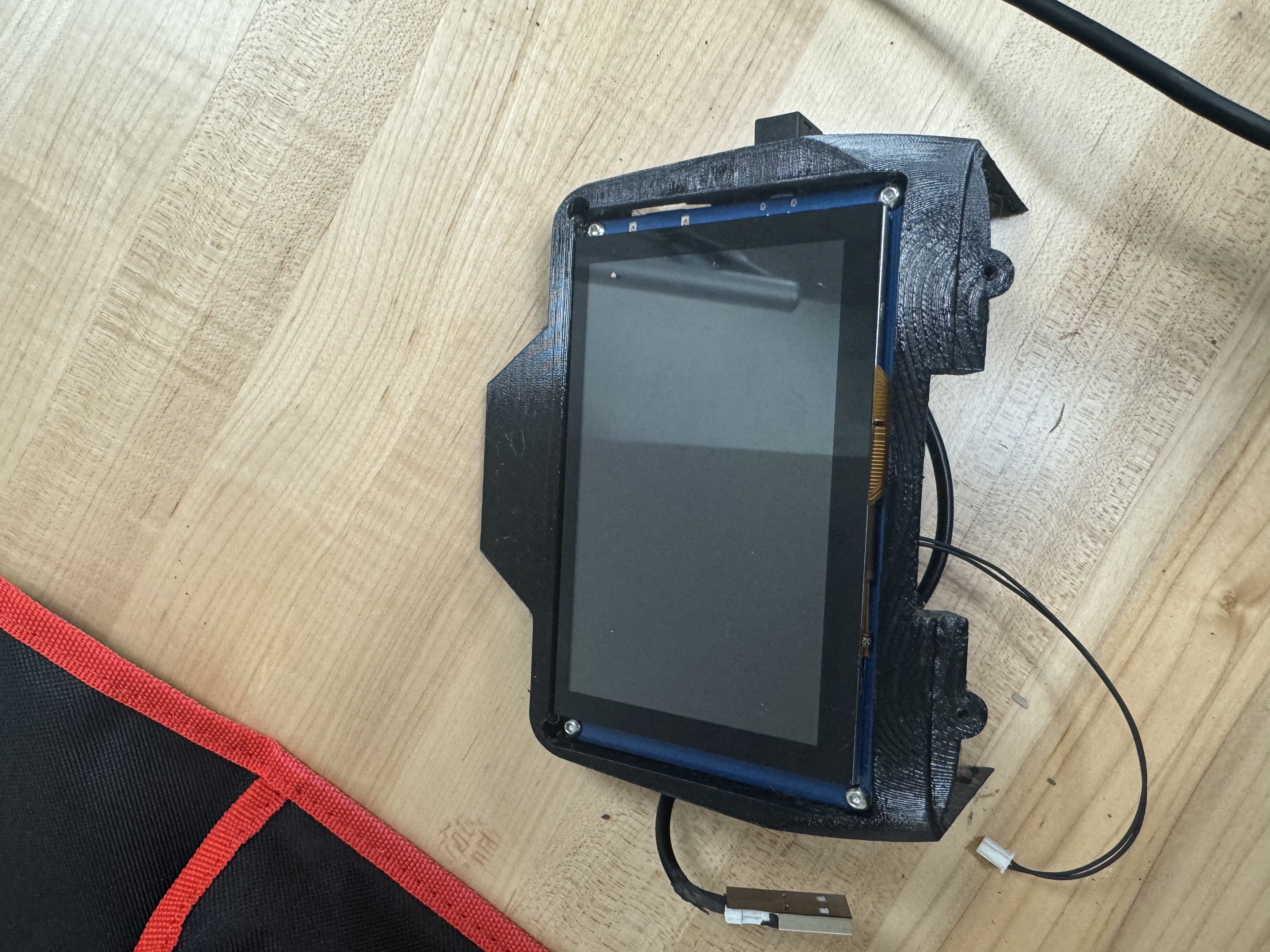 Figure 23: Screen secured to the mount.
Step 5: Final Screen Installation
Connect the USB cable from the screen to the USB hub on the plate. Place the screen assembly in its designated position on the mounting plate. Slide the BAT and VESC cables through the bottom of the plate using the slit, and slide the power switch into the hole on the screen mount. Secure the screen mount to the plate using the M3 screws from Step 2.
Step 6: Final Connections
Connect the HDMI cable from the Orin to the screen. Connect the pin from the screen switch cable to the E-Stop terminal on the power board.
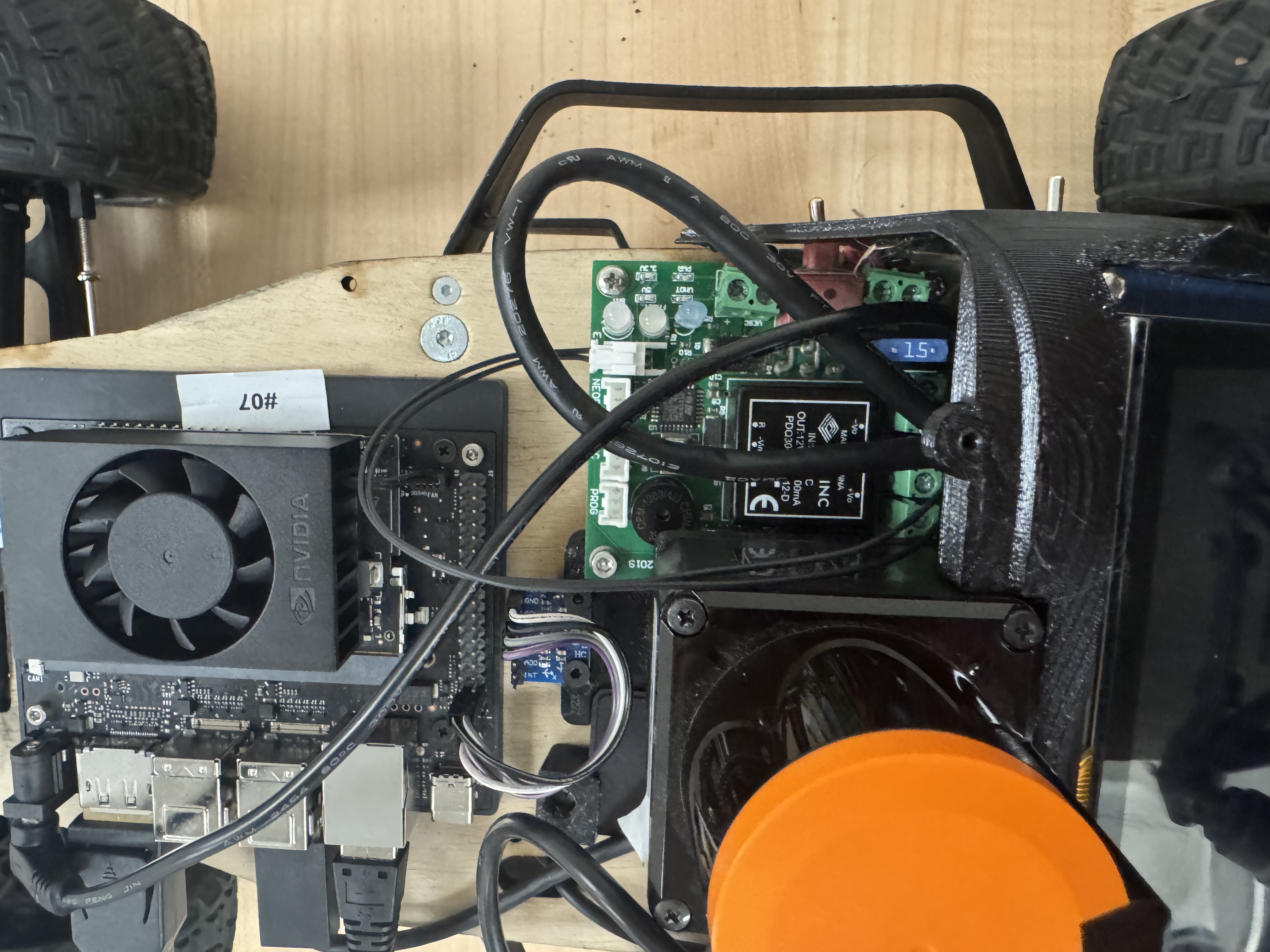 Figure 24: Power switch connected to the E-Stop terminal on the power board.
Completed Assembly
Your fully assembled RoboRacer platform should now look like the image below. Verify all connections before powering on the vehicle for the first time.
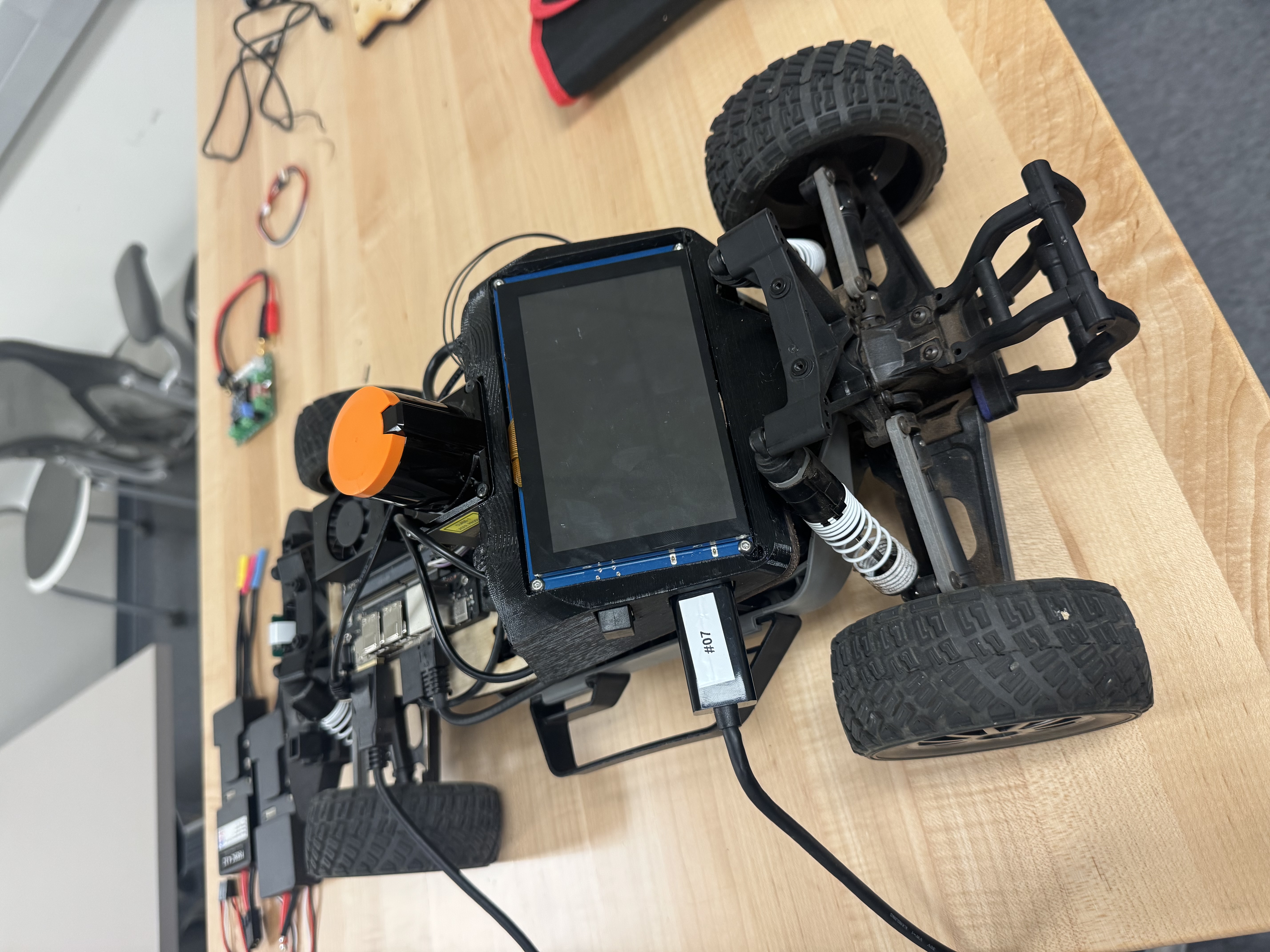 Figure 25: Fully assembled RoboRacer platform.
Verification Checklist
Before powering on the platform, verify the following:
- All screws are tightened and no components are loose.
- The VESC TRX and bullet connectors are firmly seated with correct polarity.
- The Jetson barrel jack is connected and secure.
- The LiDAR Ethernet cable is plugged in.
- The IMU jumper wires are connected to the correct Jetson pins.
- The camera ribbon cable is properly seated in the CAM0 port.
- The HDMI cable connects the Jetson to the screen.
- The USB hub is connected to the Jetson and the screen.
- The E-Stop switch is wired to the power board.
- The battery TRX cable is routed safely and accessible.