Foxglove Studio
Foxglove Studio is a powerful visualization and debugging tool for robotics applications. It supports ROS 2 natively and provides an intuitive interface to visualize sensor data, robot state, and transforms.
See the full Foxglove Studio tutorial on ros.org
Architectural Overview
There are two main components to Foxglove Studio:
-
Foxglove Studio Application: A desktop application that runs on your local machine (Windows, macOS, or Linux). It provides the user interface for visualizing data and configuring views.
-
Foxglove Bridge: A bridge that connects Foxglove Studio to ROS2. It translates ROS2 messages into a format that Foxglove Studio can understand and vice versa. The bridge runs on the car and communicates with the ROS2 system running on the car over the network.
Setup
-
Install Foxglove Studio: Download and install Foxglove Studio from the official website.
-
Install Foxglove Bridge on the Car:
- SSH into your car.
-
Launch the appropriate tmuxinator configuration (e.g.,
cd ~/roboracer_ws/tmux/teleop && tmuxinator).- or manually start the bridge:
ros2 launch foxglove_bridge foxglove_bridge_launch.xml
- or manually start the bridge:
-
Connect Foxglove Studio to the Car:
-
Open Foxglove Studio on your laptop and connect to
ws://orin07:8765. (substitute07for your car's id, if different) - Open Foxglove Studio on your computer.
- Create a new websocket connection
- Enter the websocket url using the hostname (e.g.
orin07) or wireguard ip address of your car (e.g.,10.1.0.107).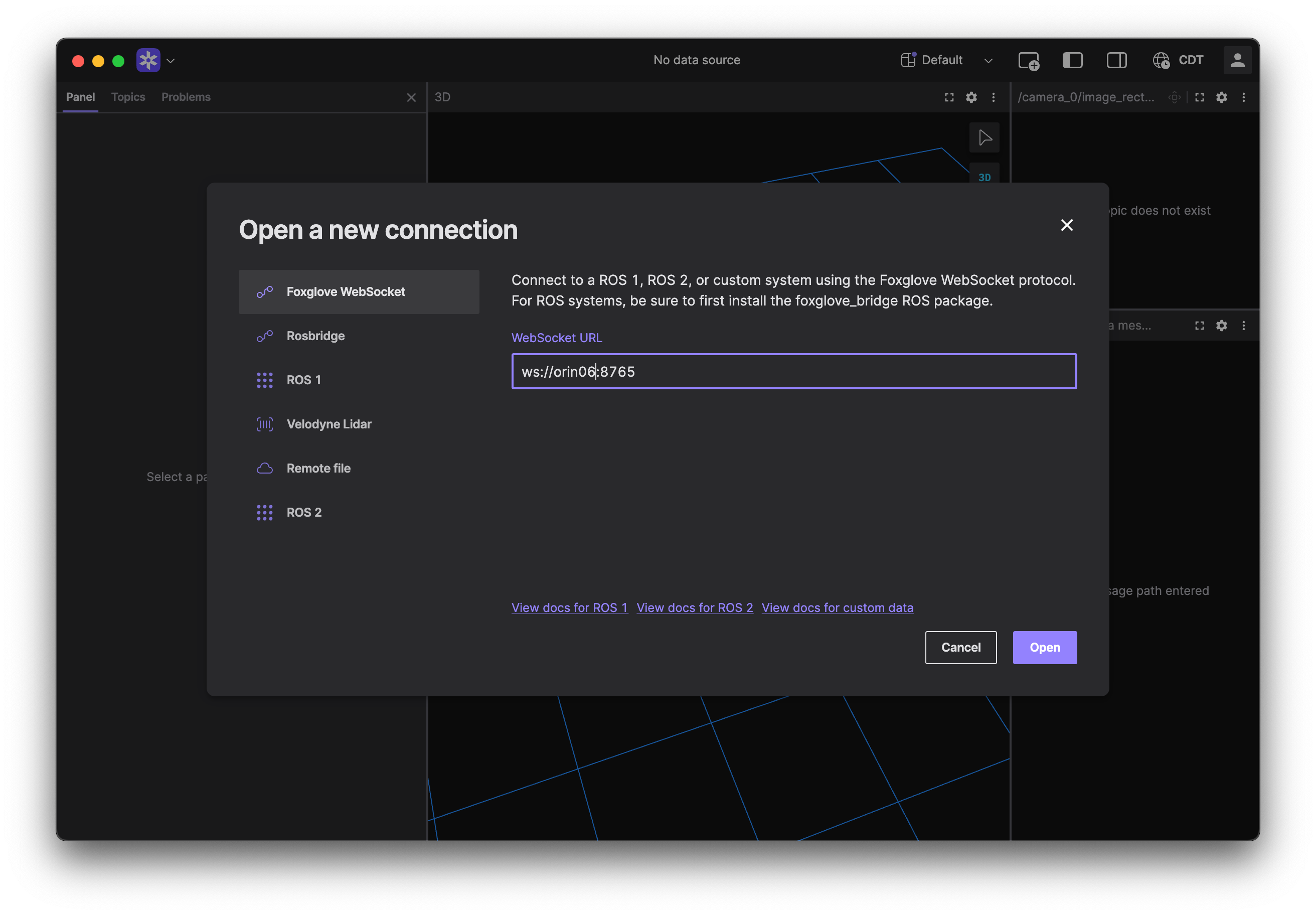
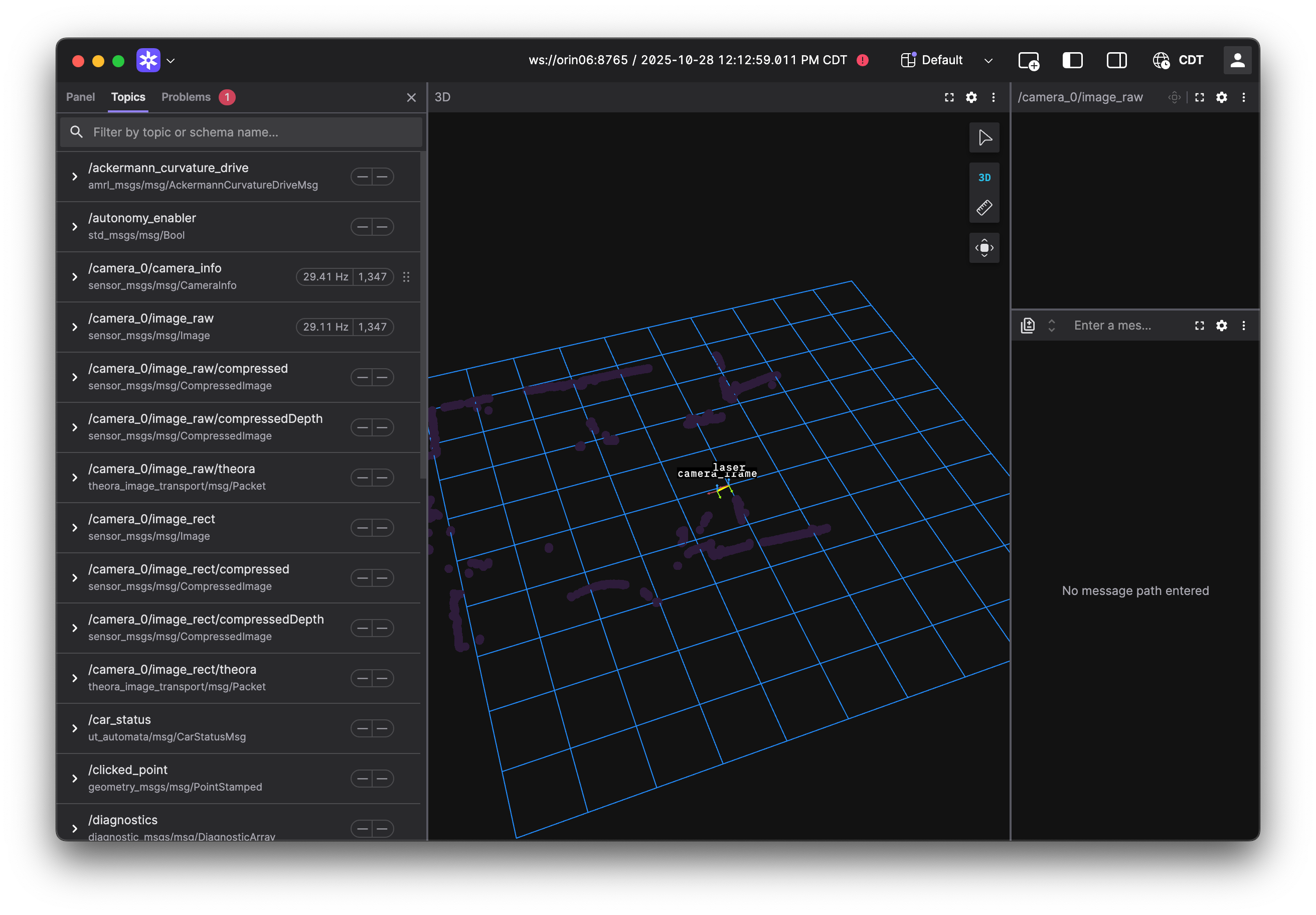
- View the topics being published by the car.
Troubleshooting
ROS2 Bridge
If you receive a "Bind Error" when launching the ROS2 bridge, it indicates that the default port for Foxglove Bridge (port 8765) is already in use by another process. This often happens if a previous instance of the bridge didn't shut down cleanly or if another websocket server is running.
You can fix this by either killing the process that is holding the port.
-
Find the Process ID (PID) using the port:
Run this command in your terminal to see what is holding port 8765:sudo lsof -i :8765Note: if lsof isn't installed, you can use the command
netstat -nlp | grep 8765orss -lptn 'sport = :8765 -
Kill the process:
Take the PID from the output above and run:kill -9 <PID> -
Relaunch Foxglove Bridge:
Run your launch command again; it should now be able to bind to the port.