PS4 Controller Setup
A PS4 Joystick is used for car control and teleoperation. Most of the fleet's controllers are AceGamer clones that identify themselves as Sony DualShock 4s, and some cars have a genuine Sony one. This guide describes how to set up the controller to work with the car.
Everything here runs on the car itself (over SSH or on its touchscreen), not inside a container.
Install the driver
This only needs to be done once per car. The setup script does it.
JetPack's kernel leaves out Linux's PlayStation controller driver. Without it, the controllers get the wrong button mapping, report no battery level, and the clones won't pair over Bluetooth at all. roboracer_ws builds the driver from source and keeps it installed across reboots and kernel updates:
~/roboracer_ws/scripts/install_ds4_driver.sh
Pair a controller
This only needs to be done once per car and controller combination.
- Plug the controller into the car with a USB cable. The driver runs a handshake the clones need before they will pair over Bluetooth. A genuine Sony controller doesn't need it, so you can skip this step for one. Note the controller's address, which appears in this folder name:
ls /sys/class/power_supply/ # ps-controller-battery-<MAC> - Unplug the cable. Start
bluetoothctland turn scanning on:bluetoothctl[bluetooth]# scan on - Hold the Share and PS buttons for about 5 seconds, until the light bar flashes in quick double blinks. Within a few seconds a line with the controller's address appears:
[NEW] Device <MAC> Wireless Controller -
Pair, trust and connect it while it's still flashing, then leave
bluetoothctl:After the first couple of characters of an address, Tab fills in the rest.[bluetooth]# pair <MAC> [bluetooth]# trust <MAC> [bluetooth]# connect <MAC> [bluetooth]# scan off [bluetooth]# quitpairends withPairing successfulandconnectwithConnection successful, and the light bar stops flashing. Keep the scan on until then:paircan only find a controller the scan has just seen.bluetoothctlalso prints a line likeController CC:47:40:.... That's the car's own Bluetooth, not the game controller, so don't pair with that address. Lines about other devices nearby, such as phones and badges, are normal.
From then on, the PS button alone reconnects the controller. It shows up as /dev/input/js* whether it's connected by Bluetooth or by cable.
Pairing from the touchscreen instead of steps 2 to 4
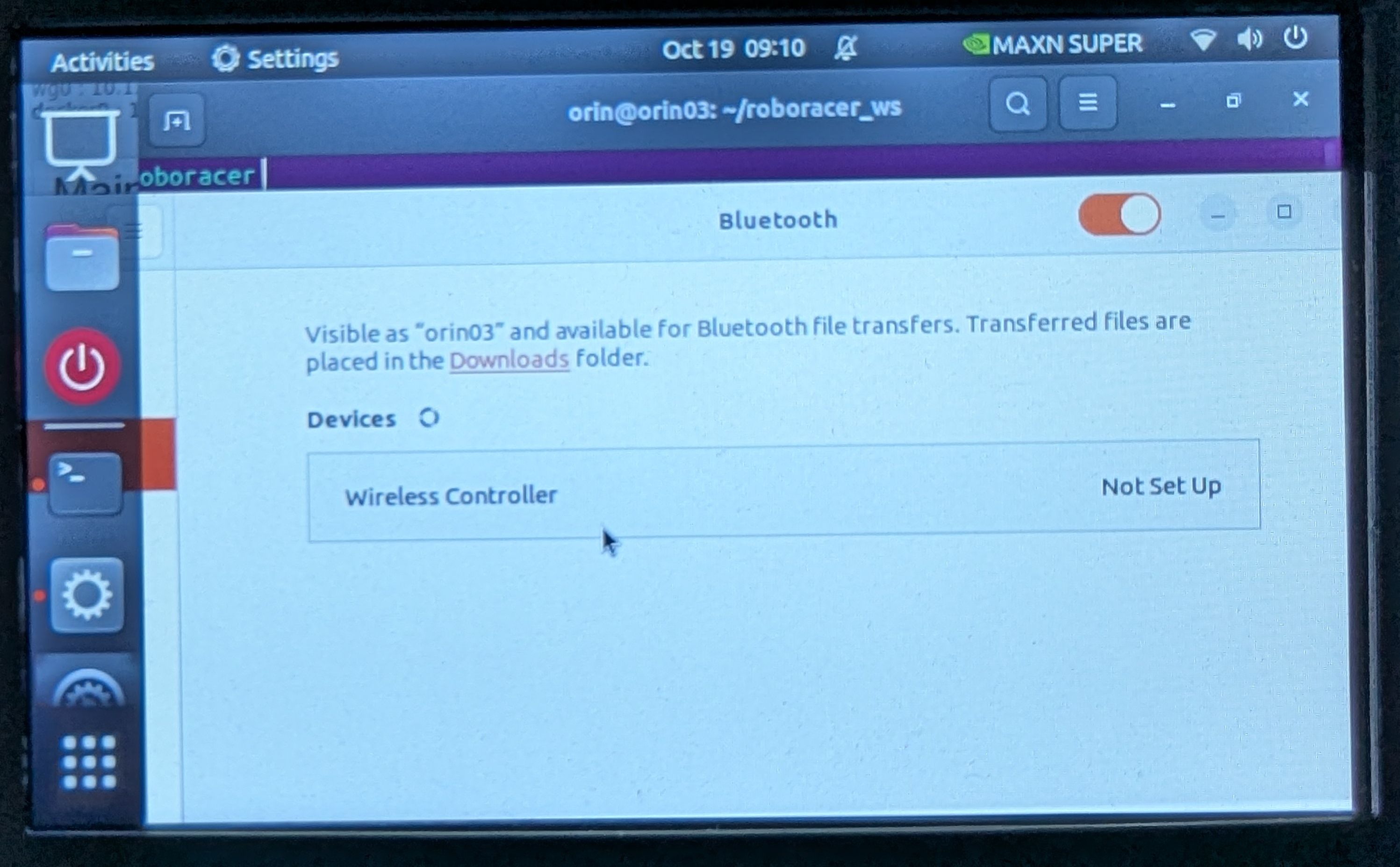
After step 1 and holding Share and PS until the light bar flashes, you can also pair from the car's Bluetooth settings. Plug a keyboard into the car, press the Windows key, and search for "Bluetooth".
Look for the controller in the list of available devices:
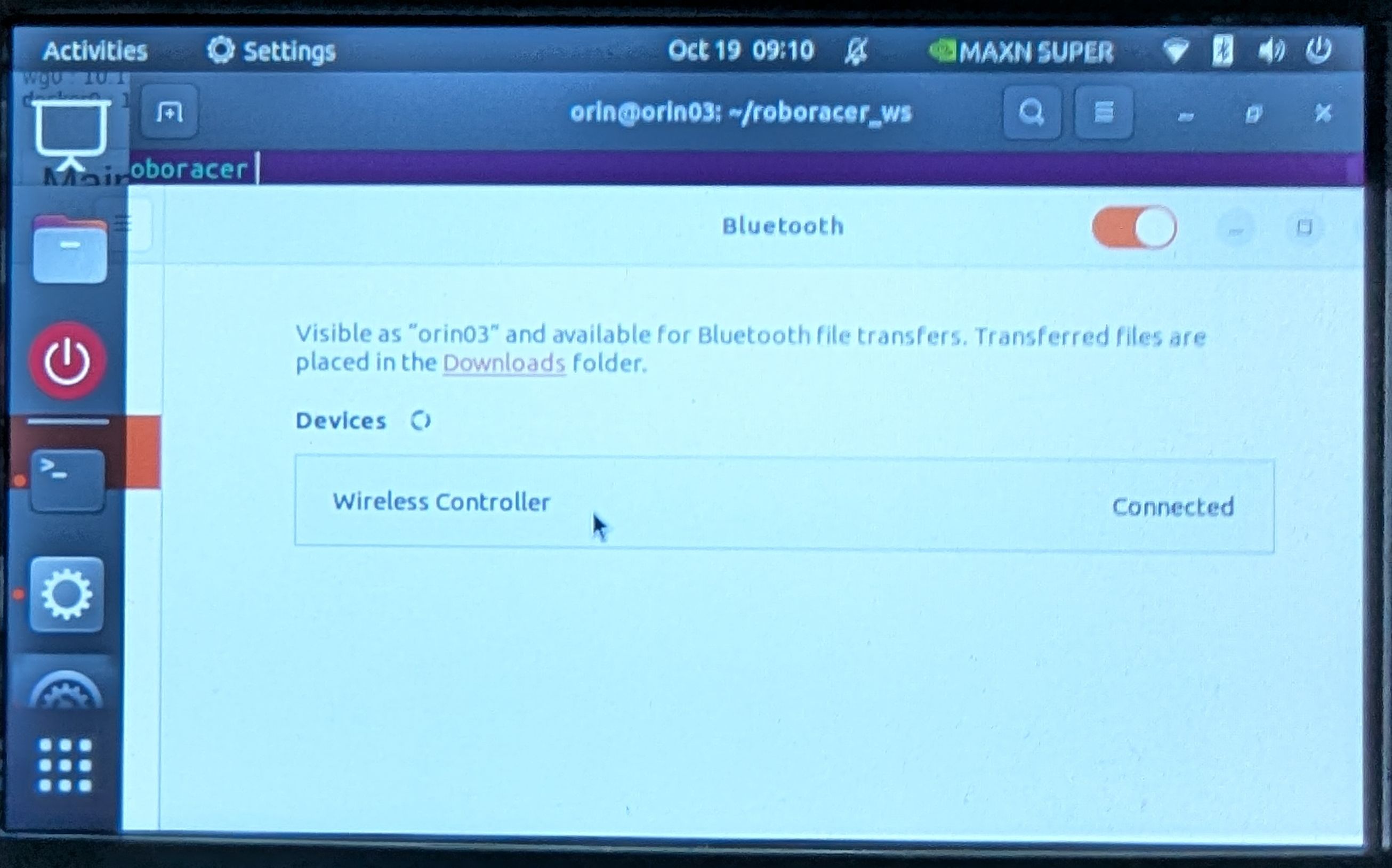
Select the Wireless Controller and click pair:
Things that are easy to get wrong:
- PS alone never starts pairing. On a controller that hasn't been paired, it blinks for a few seconds while it looks for a known car, then turns off. That's normal and says nothing about the battery. Pairing needs Share + PS held for about 5 seconds.
- The USB step is required for the clones, and does nothing on a car without the driver.
- Battery level, with the controller connected either way:
cat /sys/class/power_supply/ps-controller-battery-*/capacity - To list, unpair or reset controllers later:
~/roboracer_ws/scripts/bluetooth_controller_manager.sh
Driving with the controller
The controller drives the car whenever the teleop or navigation plan is running, for example airfield project up teleop (see Intro to Car Hardware). The joystick and the VESC driver each run in their own pane.
| Control | What it does |
|---|---|
| Hold L1 | Drive with the controller. Let go and the car stops. |
| Left stick, left/right | Steering |
| Right stick, up/down | Speed |
| L2 pressed all the way, while holding L1 | Turbo: a higher top speed |
| Hold R1 | Let the autonomy stack drive. Let go and the car stops. |
| Press R2 | Let the autonomy stack drive without holding a button. Any other button or stick stops the car. |
| D-pad left/right | Trim the steering center, saved to the car's car.lua |
| D-pad up/down | Trim the speed offset, saved to the car's car.lua |
Stick layout
joystick_mode in ~/roboracer_ws/packages/ut_automata/config/joystick.lua picks which sticks steer and drive:
"both"(default): left stick left/right steers, right stick up/down drives."left": the left stick does both."right": the right stick does both.
joystick_mode = "left"; -- or "right" or "both"
Troubleshooting
The wrong device is used as the joystick
The car's touchscreen can also appear as /dev/input/js0. If the joystick pane reads the wrong device, change joystick_port="/dev/input/js0" to joystick_port="/dev/input/js1" in joystick.lua.
The controller isn't found when the plan starts
Turn the controller on before you launch the plan. The joystick pane looks for it at startup.