Building Robots in Teams
In this tutorial you will work with your team to learn the basics of ROS2 and create a shared GitHub project. You'll make your first commits allowing you to share code via git. You will set up your editor, learn to use AI Coding tools responsibly, as well as best practices effective collaboration. With the ability to edit and share code, your team will implement several ROS2 nodes to solidify the core concepts of the Robot Operating System.
Learning Objectives
- Understand the basics of ROS2 architecture
- Understand basic Git commands and workflows
- Collaborate effectively using GitHub repositories
- Practice making commits, pushing, and pulling changes
- Set up your coding environment with your teammate
- Use an AI coding agent to assist with coding tasks
- Implement simple ROS2 nodes collaboratively
Deliverables
- A shared GitHub repository with contributions from both students
- Several simple ROS2 nodes implemented collaboratively
Prerequisites
- Have Git installed (
git --versionshould work in the terminal). - Both have GitHub accounts and are logged in.
- Have the VSCode editor installed.
git
git is a command-line tool for version control that allows multiple people to work on the same codebase simultaneously. It is closely related to github.com, which is one of the most popular platforms for hosting Git repositories. While git can be self-hosted or hosted on other platforms, such as gitlab.com, we will use github.com in this tutorial and for the class. In this portion of the tutorial, you will create a shared repository on GitHub and practice basic git commands such as clone, add, commit, push, and pull.
This portion of the tutorial should be done on your laptop.
1. Student A creates the repository
- Go to https://github.com and click New repository.
- Check Add a README file.
- Click Create repository.
Now Student A has a GitHub repo!
2. Student A clones the repo to their computer
In a terminal:
git clone https://github.com/<studentA-username>/git-practice.git
cd git-practice
3. Student A makes their first change and pushes it
-
Create a new file, for example:
echo "Hello from Student A" > hello.txt -
Check what’s new:
git status -
Stage and commit the file:
git add hello.txt git commit -m "Add hello.txt from Student A" -
Push to GitHub:
git pushNow, ensure the file is visible on the GitHub website: https://github.com/
/git-practice
4. Student B joins the project
-
Student A should go to the repo on GitHub, open: Settings, Collaborators, Add collaborator, enter Student B’s GitHub username and invite them.
-
Student B accepts the invitation (check email or notifications).
5. Student B clones the repo and pulls the latest changes
git clone https://github.com/<studentA-username>/git-practice.git
cd git-practice
Now Student B has the same files locally.
6. Student B makes a new change and pushes it
-
Add another file:
echo "Hello from Student B" > hello_b.txt -
Stage and commit:
git add hello_b.txt git commit -m "Add hello_b.txt from Student B" -
Push the change:
git push
7. Student A pulls the new changes
Back on Student A’s computer:
git pull
Student A will now see both hello.txt and hello_b.txt locally.
Lab Notebook
Include two screenshots of your terminal. One screenshot should show the contents of the project (run the ls command). One screenshot should show the output of the git log command displaying the commit history with both students' commits.
git Summary
You just:
- Created a GitHub repo
- Made commits
- Pushed and pulled between collaborators
Version control systems are a powerful collaboration tool that allow multiple people to work on the same codebase without conflicts. They track changes, allow you to revert to previous versions, and provide a history of who made what changes.
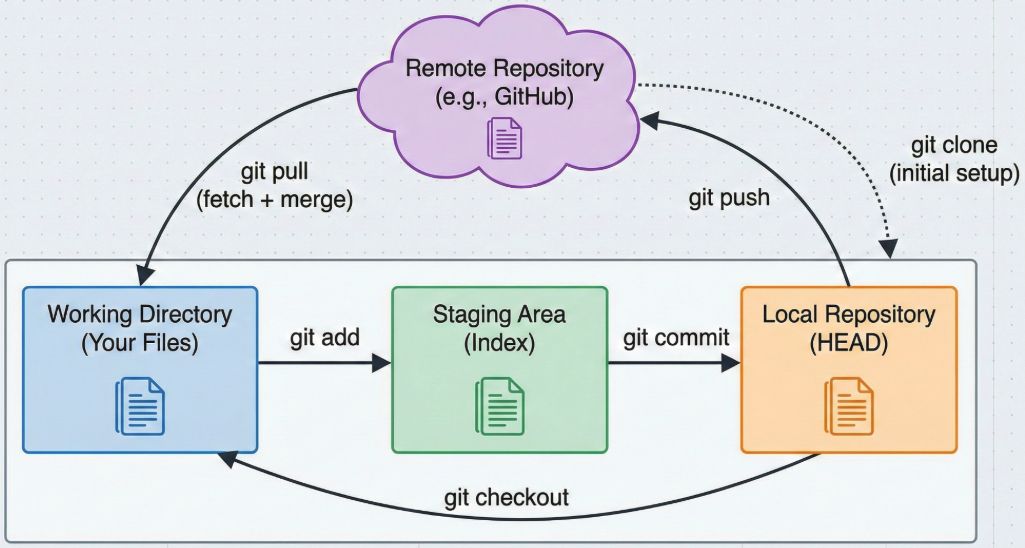
For reference, recall the git workflow is:
make changes -> git add -> git commit -> git push -> git pull -> make changes -> ...
Updating the Code in the Course Repositories
It's good practice to keep your local codebase up to date with the latest changes from the course repositories. This ensures you have access to the most recent tutorials, bug fixes, and features. Follow these steps regularly to sync your local repository with the remote course repository.
- Navigate to your local repository:
cd ~/roboracer_ws/
- Fetch the latest changes from the remote repository:
git pull
- Update the repositories in the workspace:
./scripts/checkout.sh
The Robot Operating System (ROS) 2
The robot operating system (ROS) is a flexible framework for writing robot software. It is a collection of tools, libraries, and conventions that aim to simplify the task of creating complex and robust robot behavior across a wide variety of robotic platforms. ROS2 is the second generation of ROS, which includes improvements in performance, security, and real-time capabilities.
ROS2
If you're not familiar with ROS2, read the ROS2 overview.
Creating A New ROS 2 Package
Building systems in teams is a critical skill for robotics researchers. A key challenge in this process is organizing code so that multiple people can work on different parts of the system without conflicts. ROS 2 packages provide a modular way to encapsulate functionality, making it easier to manage and share code among team members.
In this section, you will work in a team to create a new ROS2 package (or two, your choice) in your shared repository. Your implementation should contain two nodes: node A and node B. Node A will publish a simple message, and Node B will subscribe to that message and print it to the console.
Read through the instructions and then decide with your teammate how the work will be fairly divided.
Lab Notebook
Note how you plan to divide the work between team members.
1. ssh into your lab machine ssh <csid>@<lab machine name>.cs.utexas.edu
If you haven't checked out the roboracer_ws repository yet, you can do so by following the instructions on the ROS Workspace documentation page.
2. Enter the container
Since this porition of the tutorial will be using a ros2 command, you'll need to enter the container first.
If you haven't checked out the
roboracer_wsrepository or built your container yet, be sure to follow the ROS Workspace documentation page.
Be sure to build your container once, before calling ./container shell
Run ./container build once, before calling ./container shell.
cd ~/roboracer_ws
./container shell
Note: read more about what a container is and why we're using it on the containers documentation page.
3. Navigate to your workspace src directory
Note: the
srcdirectory, inside of the main workspace,~/roboracer_ws, is where your ROS2 packages are stored.
cd ~/roboracer_ws/src
4. Create a new ROS2 package named team_tutorial with dependencies on rclpy and std_msgs using the ros2 pkg create command
Note: only one team member should create the new package.
ros2 pkg create team_tutorial --build-type ament_python --license MIT --dependencies rclpy std_msgs
The output in your terminal should look like this:
[docker]:tsoi@jet:~/roboracer_ws/src$ ros2 pkg create team_tutorial --build-type ament_python --license MIT --dependencies rclpy std_msgs
going to create a new package
package name: team_tutorial
destination directory: /home/tsoi/roboracer_ws/src
package format: 3
version: 0.0.0
description: TODO: Package description
maintainer: ['tsoi <nathan.tsoi@utexas.edu>']
licenses: ['MIT']
build type: ament_python
dependencies: ['rclpy', 'std_msgs']
creating folder ./team_tutorial
creating ./team_tutorial/package.xml
creating source folder
creating folder ./team_tutorial/team_tutorial
creating ./team_tutorial/setup.py
creating ./team_tutorial/setup.cfg
creating folder ./team_tutorial/resource
creating ./team_tutorial/resource/team_tutorial
creating ./team_tutorial/team_tutorial/__init__.py
creating folder ./team_tutorial/test
creating ./team_tutorial/test/test_copyright.py
creating ./team_tutorial/test/test_flake8.py
creating ./team_tutorial/test/test_pep257.py
Once you've created the package with the ros2 pkg create command, exit the container by typing exit:
[docker]:tsoi@jet:~/roboracer_ws/src$ exit
logout
Now that you're outside of the container, check what directory youre currently in by running the pwd command:
jet$ pwd
/u/tsoi/roboracer_ws
This means we'll need to change directory with the cd command back into our new package:
jet$ cd ~/roboracer_ws/src/team_tutorial
5. Initialize git in your new package
Note: only one team member should initialize the git repository.
In order to create a new git repository and share the code with your partner for your new ros package, you will run the git init command from the root directory of the project.
Use the pwd command to check your current directory. You should be in your new team_tutorial package.
jet$ pwd
/u/tsoi/roboracer_ws/src/team_tutorial
Now run the git init command to initialize the git repository, you'll see this output:
jet$ git init .
hint: Using 'master' as the name for the initial branch. This default branch name
hint: will change to "main" in Git 3.0. To configure the initial branch name
hint: to use in all of your new repositories, which will suppress this warning,
hint: call:
hint:
hint:  git config --global init.defaultBranch <name>
hint:
hint: Names commonly chosen instead of 'master' are 'main', 'trunk' and
hint: 'development'. The just-created branch can be renamed via this command:
hint:
hint:  git branch -m <name>
hint:
hint: Disable this message with "git config set advice.defaultBranchName false"
Initialized empty Git repository in /u/tsoi/roboracer_ws/src/team_tutorial/.git/
Check the status of your git repository by running git status.
Note: that
git statusis a great command to run anytime you're wondering what state your git repository is in.
You should see output in your terminal like this:
jet$ git status
On branch master

No commits yet

Untracked files:
  (use "git add <file>..." to include in what will be committed)
 LICENSE
 package.xml
 resource/
 setup.cfg
 setup.py
 team_tutorial/
 test/

nothing added to commit but untracked files present (use "git add" to track)
All of the files are currently "untracked" meaning that git does not know about them.
Add all the files in the current directory (represented by the .) to git with the git add . command:
git add .
Check the git status again and you'll see that all the files are now ready to be committed (aka "staged"):
jet$ git status
On branch master

No commits yet

Changes to be committed:
  (use "git rm --cached <file>..." to unstage)
 new file:   LICENSE
 new file:   package.xml
 new file:   resource/team_tutorial
 new file:   setup.cfg
 new file:   setup.py
 new file:   team_tutorial/__init__.py
 new file:   test/test_copyright.py
 new file:   test/test_flake8.py
 new file:   test/test_pep257.py
So, we can commit the staged files with the git commit command:
Note: every git commit needs a descriptive message. The
-mflag allows you to easily add this commit message. Run:
git commit -m "Initial commit"
Note: If you haven't configured your git username and email, or they were configured automatically, for example, on the lab machines, you'll be prompted to do this before pushing. Follow the instructions returned by the
git commitcommand as necessary
The output will look something like this:
[master (root-commit) d2e1091] Initial Commit
 9 files changed, 144 insertions(+)
 create mode 100644 LICENSE
 create mode 100644 package.xml
 create mode 100644 resource/team_tutorial
 create mode 100644 setup.cfg
 create mode 100644 setup.py
 create mode 100644 team_tutorial/__init__.py
 create mode 100644 test/test_copyright.py
 create mode 100644 test/test_flake8.py
 create mode 100644 test/test_pep257.py
You can run git status again to see that your files are now committed and you'll see:
jet$ git status
On branch master
nothing to commit, working tree clean
But it looks like your files are gone? No, they're just tracked by git now. You can see the commit you just made by running git log:
jet$ git log
commit d2e10917d932dcd7071d5d043c8f532cdcec56d2 (HEAD -> master)
Author: Nathan Tsoi <tsoi@cs.utexas.edu>
Date:   Wed Jan 14 10:40:46 2026 -0600

    Initial Commit
Now that your local git repository is up to date, we'll share our code by pushing it to github.
Try to push the files to the remote repository using the git push command, it will fail with a useful error message:
jet$ git push
fatal: No configured push destination.
Either specify the URL from the command-line or configure a remote repository using

    git remote add <name> <url>

and then push using the remote name

    git push <name>
This means that we need to configure our new project with a remote repository, telling git where it should push the code.
Go to github.com and create a new repository. Name it team_tutorial, leaving all the other configurations as default. Importantly, don't initialize the repository with a README.
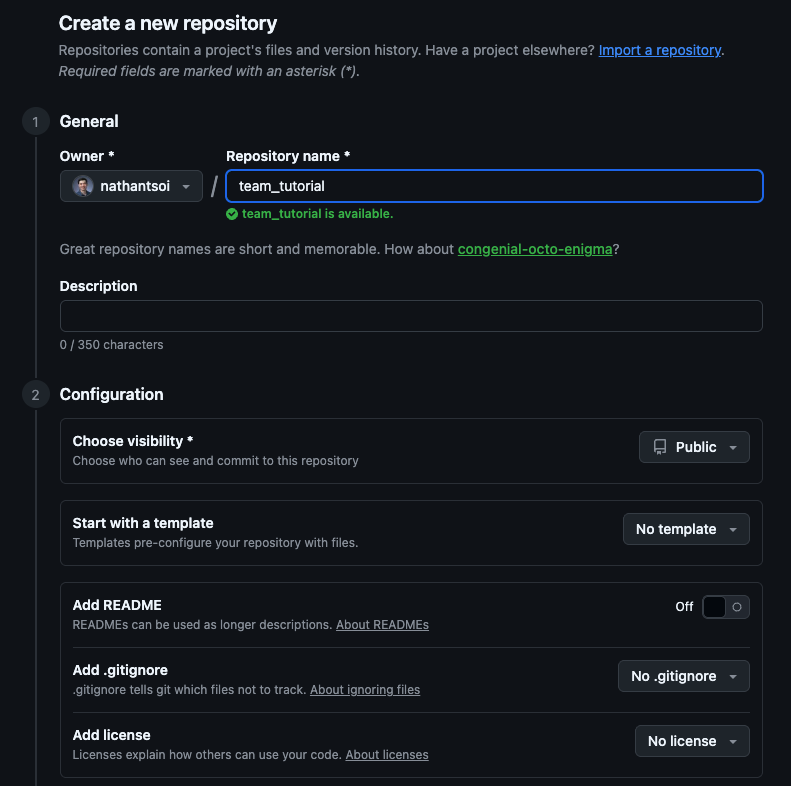
Note: be sure to go to "Settings" in your new repository and share it with your team members.
Upon creation, you'll be presented with a series of commands to run to push to your new repository, we've already completed most of the steps. The only command you need to run is the git remote add command. Be sure to use the correct URL for your repository:
git remote add origin git@github.com:nathantsoi/team_tutorial.git
Once you've configured the remote repository, you can push your code to it using the git push command, this command will fail again, but when it does, re-run the command with the suggested flag. This is what it will look like the first time:
jet$ git push
fatal: The current branch master has no upstream branch.
To push the current branch and set the remote as upstream, use

    git push --set-upstream origin master

To have this happen automatically for branches without a tracking
upstream, see 'push.autoSetupRemote' in 'git help config'.
Then re-run it with the --set-upstream flag:
git push --set-upstream origin master
Now, check github to make sure your new project has been pushed. You should see the code on github:
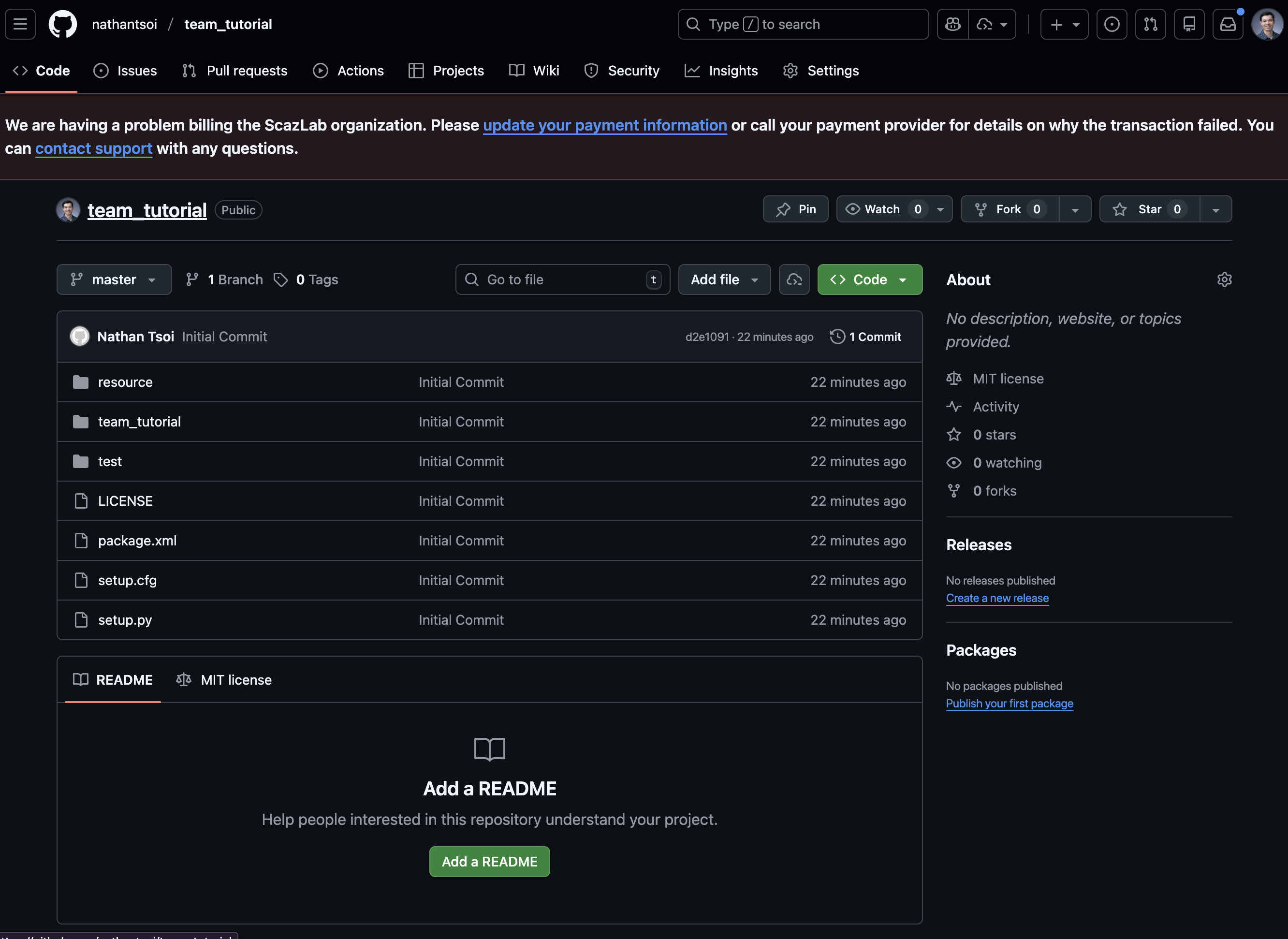
Have your partner checkout the new repository.
6. Implement the two nodes in separate Python files within the team_tutorial package
Remember to fairly divide the work between team members. Also, you can
git add,git commit, andgit pusheach step, practicing making small commits with logical changes.
The contents of your package will go inside of a folder called team_tutorial inside of the team_tutorial package. Create the files node_a.py and node_b.py inside of the team_tutorial folder:
cd ~/roboracer_ws/src/team_tutorial/team_tutorial
touch node_a.py node_b.py
You can check the folder contents to see if the files were created:
cd ~/roboracer_ws/src/team_tutorial/team_tutorial
ls
__init__.py  node_a.py node_b.py
7. Edit node_a.py to publish a simple message
Note: now is a great time to start up your editor, like VSCode and open your new project directory (
~/roboracer_ws/src/team_tutorial) to edit the project files.
#!/usr/bin/env python3

import rclpy
from rclpy.node import Node
from std_msgs.msg import String

class NodeA(Node):
    def __init__(self):
        super().__init__('node_a')
        self.publisher_ = self.create_publisher(String, 'hello', 10)
        self.timer = self.create_timer(1.0, self.timer_callback)

    def timer_callback(self):
        msg = String()
        msg.data = 'Hello from Node A'
        self.publisher_.publish(msg)
        self.get_logger().info(f'Publishing: {msg.data}')

def main(args=None):
    rclpy.init(args=args)
    node_a = NodeA()
    rclpy.spin(node_a)
    rclpy.shutdown()

if __name__ == '__main__':
    main()
8. Register the node in setup.py
To run the node using ros2 run, you need to register the entry point in setup.py. Open setup.py and add the following line to the entry_points console_scripts list:
The
setup.pyfile
    entry_points={
        'console_scripts': [
            'node_a = team_tutorial.node_a:main',
        ],
    },
9. Build the workspace to install the new node
Note: building the ros workspace requires being in the container.
cd ~/roboracer_ws
./container shell
colcon build --packages-select team_tutorial
You'll get output like this:
[docker]:tsoi@jet:~/roboracer_ws$ colcon build --packages-select team_tutorial
[0.394s] colcon.colcon_ros.prefix_path.ament WARNING The path '/home/tsoi/roboracer_ws/src/amrl_maps/install' in the environment variable AMENT_PREFIX_PATH doesn't exist
[0.394s] colcon.colcon_ros.prefix_path.ament WARNING The path '/home/tsoi/roboracer_ws/src/amrl_msgs/install' in the environment variable AMENT_PREFIX_PATH doesn't exist
Starting >>> team_tutorial
Finished <<< team_tutorial [1.04s]

Summary: 1 package finished [1.48s]
When you create a new package, you'll need to re-source the environmental variables in your shell. You can do this by running source install/setup.bash:
There is no output from this command, so the expected output is an empty line:
[docker]:tsoi@jet:~/roboracer_ws$ source install/setup.bash
[docker]:tsoi@jet:~/roboracer_ws$
10. Edit node_b.py to subscribe to the message and print it
#!/usr/bin/env python3

import rclpy
from rclpy.node import Node
from std_msgs.msg import String

class NodeB(Node):
    def __init__(self):
        super().__init__('node_b')
        self.subscription = self.create_subscription(
            String,
            'hello',
            self.listener_callback,
            10)
        self.subscription  # prevent unused variable warning

    def listener_callback(self, msg):
        self.get_logger().info(f'Received: {msg.data}')

def main(args=None):
    rclpy.init(args=args)
    node_b = NodeB()
    rclpy.spin(node_b)
    rclpy.shutdown()

if __name__ == '__main__':
    main()
11. Register the node in setup.py
Add the entry point for node_b to setup.py:
entry_points={
    'console_scripts': [
        'node_a = team_tutorial.node_a:main',
        'node_b = team_tutorial.node_b:main',
    ],
},
12. Rebuild the workspace
Remember,
colconneeds to be run inside the container
Make the Python files executable:
cd ~/roboracer_ws/src/team_tutorial/team_tutorial
chmod +x node_a.py node_b.py
colcon build --packages-select team_tutorial
source install/setup.bash
Running the Nodes
Open 2 shell windows by using tmux panes.
In the first pane, run Node A:
ros2 run team_tutorial node_a
In the second pane, run Node B:
ros2 run team_tutorial node_b
You should see Node A publishing messages and Node B receiving and printing them.
Lab Notebook
Include screenshots of both terminal panes showing Node A publishing messages and Node B receiving them.
Commit any remaining changes
Make sure your code is up to date on github by committing your changes and pushing to github.
When you're done, your git status should look like this:
jet$ git status
On branch master
Your branch is up to date with 'origin/master'.
Lab Notebook
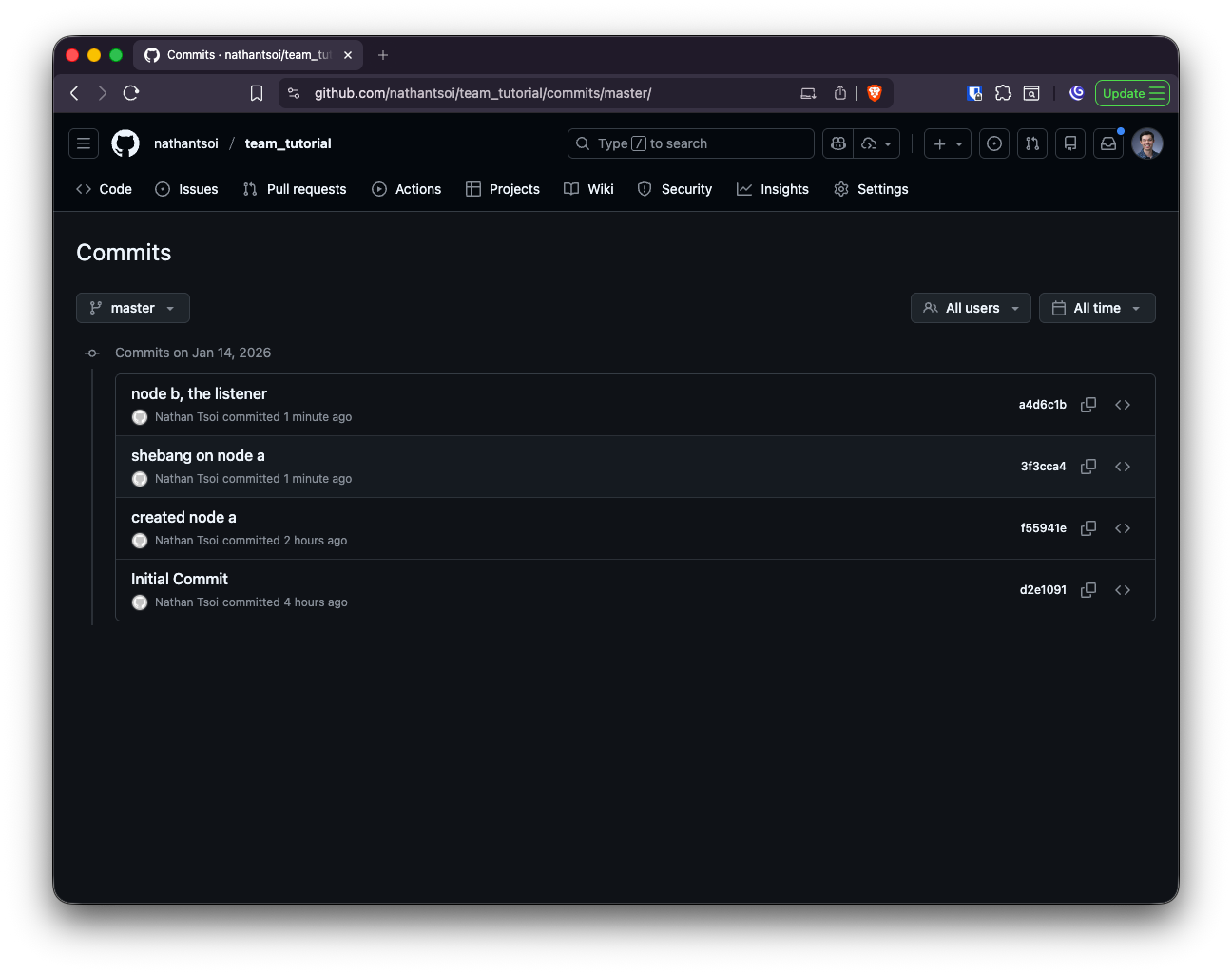
Include a screenshot of your shared repositories commits.
For example: