Navigation
How does a robot know where it is in the world? Mapping and localization are fundamental problems in robotics that enable autonomous navigation. In this tutorial, you will learn how to run a Simultaneous Localization and Mapping (SLAM) algorithm to build a map of the environment while keeping track of the robot's position within that map. Then, you will use Adaptive Monte Carlo Localization (AMCL) to localize the robot on the map you've collected and then use the ROS2 Navigation Stack to navigate the robot to a goal.
Prerequisites
These are all provided in the navigation launch file.
- Lidar publishing
/scanat ≥10 Hz - The roboracer description node publishing the robot's static transforms
- The vesc driver node publishing odometry on the topic
/odom
Learning Objectives
- Students can build a map using SLAM and then use this map to allow their car to localize in the environment.
Tools and Packages
- We will be using the SLAM Toolbox package for mapping.
- The Hokuyo LIDAR is the primary sensor for both mapping and localization.
- The vesc_driver provides odometry information.
Tutorial Steps
In this tutorial, you will perform car calibration, build a map using SLAM, and then run the navigation stack with AMCL for localization.
1. Car Calibration
Car calibration is essential to ensure that the vehicle's control commands correspond accurately to its physical movements. The calibration process involves tuning parameters for steering and speed to achieve precise control.
The calibration process is automated through a tmuxinator configuration and the script being run.
Start the car calibration tmuxinator configuration after sshing into your car.
Note: You must run the car calibration from an SSH terminal and not the GUI because it requires you to interact with the script.
cd ~/roboracer_ws
./container shell
cd ~/roboracer_ws/tmux/car_calibration/
tmuxinator
When tmux launches, the left pane will contain instructions. The steps described here summarize and help describe the process that you will be guided through in the tmux session.
Note: If you need to restart at any point, your progess will be saved at the end of each calibration step, so feel free to
ctrl-cto kill the calibration script and restart it later. You can skip completed steps by pressingqthenENTERwhen prompted at each step.
Steering Offset Calibration
This calibration step will find the servo position that makes the car drive perfectly straight.
Process:
-
Accept the dialog confirmation and then hold the
R1button. The car will drive forward at 1 m/s for 5 seconds -
Use the LEFT JOYSTICK (horizontal) to keep the car going straight
-
The script records how much steering correction you apply
-
After each run, the script shows your average correction and adjusts the offset
-
Repeat until your average correction is near zero (< 0.6 degrees)
How to Control:
-
Left stick horizontal (left/right): Apply steering corrections
-
Use small, smooth movements to keep the car tracking straight
-
DO NOT press any buttons during the test (triggers emergency stop)
-
Imagine you're actively driving to keep it on a straight line
Tips:
-
Use a long, straight line on the floor as reference (tape, hallway edge, etc.)
-
Focus on keeping the car centered on the line
-
Don't overcorrect - small adjustments work best
-
The script will tell you the average correction angle after each run
-
After 2-3 iterations, the car should need minimal correction
What the Script Reports:
-
Average correction angle (should converge toward 0°)
-
Standard deviation (how consistent your corrections were)
-
Maximum correction (peak steering input during the run)
-
Number of samples collected (~250 for a 5-second run)
Expected Result: steering_angle_to_servo_offset between 0.4 and 0.6
When the steering angle offset has been calculated, it will be automatically saved to the car.lua file. You will then be prompted to restart the vesc driver to apply the new settings. To do this, click the pane with the vesc driver and press ctrl-c to stop it. Then, restart it by pressing the UP ARROW key to recall the last command and then ENTER to run it again. You should then verify the newly calibrated offset is being used by checking the vesc driver output for a line like this:
[INFO] [1762804610.629546091] [vesc_driver_node]: steering_angle_to_servo_offset = 0.46
The value 0.46 should match the value printed out from the calibration script.
The final line in the vesc driver output should say Connected to VESC with firmware version 3.62 which indicates the vesc driver is running correctly and you can continue to the next step.
Steering Gain Calibration
This step will allow you to verify the relationship between steering angle and turn radius.
Process:
-
The car will make a full LEFT turn
-
After the turn, measure the DIAMETER of the circle it traced
-
Enter the diameter in meters
-
The car will then make a full RIGHT turn
-
Measure and enter the diameter again
How to Measure:
-
Mark the starting point before the turn
-
After the turn, measure across the widest part of the circle
-
Use a measuring tape for accuracy
-
Typical diameter: 2-4 meters
Record the Minimum Turning Radius
Record the minimum turning radius of the circle the car traced (in meters). You will use this value later in the tutorial in Section 3: Configure and Run the Navigation Stack with AMCL.
Tips:
-
Clear obstacles from the turning area
-
The car needs ~3-4 meters diameter space
-
If the car doesn't complete a full circle in 15 seconds, that's OK
-
Measure where the tires touched the ground
Expected Result: steering_angle_to_servo_gain around -0.9 to -1.1
When the steering angle servo gain has been calculated, it will be automatically saved to the car.lua file. You will then be prompted to restart the vesc driver to apply the new settings. To do this, click the pane with the vesc driver and press ctrl-c to stop it. Then, restart it by pressing the UP ARROW key to recall the last command and then ENTER to run it again. You should then verify the newly calibrated offset is being used by checking the vesc driver output for a line like this:
[INFO] [1762804610.629528490] [vesc_driver_node]: steering_angle_to_servo_gain = -0.9227
The value -0.9227 should match the value printed out from the calibration script.
The final line in the vesc driver output should say Connected to VESC with firmware version 3.62 which indicates the vesc driver is running correctly and you can continue to the next step.
Speed Offset Calibration
This step will find the minimum motor command needed to overcome friction.
Process:
-
The car will gradually increase motor power
-
The script monitors when the car starts moving
-
This happens automatically - just watch for safety
What to Watch:
-
The car should remain stationary initially
-
Then begin to creep forward slowly
-
Be ready to press a joystick button if needed
Expected Result: speed_to_erpm_offset between 150 and 400
When the erpm offset has been calculated, it will be automatically saved to the car.lua file. You will then be prompted to restart the vesc driver to apply the new settings. To do this, click the pane with the vesc driver and press ctrl-c to stop it. Then, restart it by pressing the UP ARROW key to recall the last command and then ENTER to run it again. You should then verify the newly calibrated offset is being used by checking the vesc driver output for a line like this:
[INFO] [1762804610.629512906] [vesc_driver_node]: speed_to_erpm_offset = 330.00
The value 330 should match the value printed out from the calibration script.
The final line in the vesc driver output should say Connected to VESC with firmware version 3.62 which indicates the vesc driver is running correctly and you can continue to the next step.
Speed Gain Calibration
This step will calibrate the relationship between velocity commands and actual speed.
Process:
-
The car will drive at 0.5 m/s, 1.0 m/s, and 2.0 m/s
-
Each test runs for 5 seconds
-
The script calculates distance from odometry
-
You can optionally measure actual distance with tape measure
For Best Accuracy:
-
Mark a starting line
-
Mark lines at 1m, 2m, 3m, 4m, 5m, 10m
-
Watch which line the car reaches
-
Enter the actual distance when prompted
Tips:
-
The odometry-based measurement is usually sufficient
-
Manual measurement improves accuracy by 5-10%
-
A straight hallway or parking space works well
Expected Result: speed_to_erpm_gain around 5000-6000 (depends on gearing)
Calculate Final Parameters
Two components that we will explore later in this tutorial are the relationship between the turning rate and the turning radius of the car. Using the measured turning radius from your calibrated parameters, we can compute the max turning rate as the arctangent of the ratio between the wheelbase and the turning radius.
maxTurnRate = atan(wheelbase / desired_min_turning_radius)
Compute your max turn rate using your measured turning radius from the steering gain calibration step. The wheelbase of the car is 0.324 m. Record your calculated max turn rate in your lab notebook, as described in the next step.
Test the Car's new Calibration
Drive the car around using the joystick and observe its behavior. In particular, when driving the car straight, it should maintain a straight trajectory with minimal steering corrections. If the car is drifting to one side, you may need to update the steering offset calibration. you can make a small positive change to the steering_angle_to_servo_offset value if it is drifting left, or a small negative change if it is drifting right. You can re-run just the steering offset calibration step to refine this value further.
Minor Adjustments
If you find later that the car is not moving in a straight line, you can make minor adjustments by tapping the right and left arrows on the PS4 Joystick D-Pad. Each tap will slightly adjust the steering offset and save this update to the configuration file.
Record your Calibration Results
The final calibration results will be summarized and saved to the car.lua file. You can view the file to see all the calibrated parameters:
cat ~/roboracer_ws/src/ut_automata/config/car.lua
Which should look something like this:
car_name = "car12";
steering_angle_to_servo_offset = 0.4555;
steering_angle_to_servo_gain = -0.9676;
max_steering_angle = 0.3960;
speed_to_erpm_offset = 400.0;
speed_to_erpm_gain = 4082.8;
Lab Notebook
Record your final calibration parameters in your lab notebook for future reference.
It's important to keep a record of your experimental results independent of the code, in case you need to recalibrate or troubleshoot issues later. Write down the following parameters:
steering_angle_to_servo_offset= ___steering_angle_to_servo_gain= ___max_steering_angle= ___speed_to_erpm_offset= ___speed_to_erpm_gain= ___
2. Build a Map with SLAM Toolbox
Once your car is calibrated, you can build a map of your environment using SLAM.
The neccessary nodes for mapping have been configured in the record_map tmuxinator configuration. Launch it from the GUI on the car or ssh into your car and run the commands:
cd ~/roboracer_ws
./container shell
cd ~/roboracer_ws/tmux/record_map/
tmuxinator
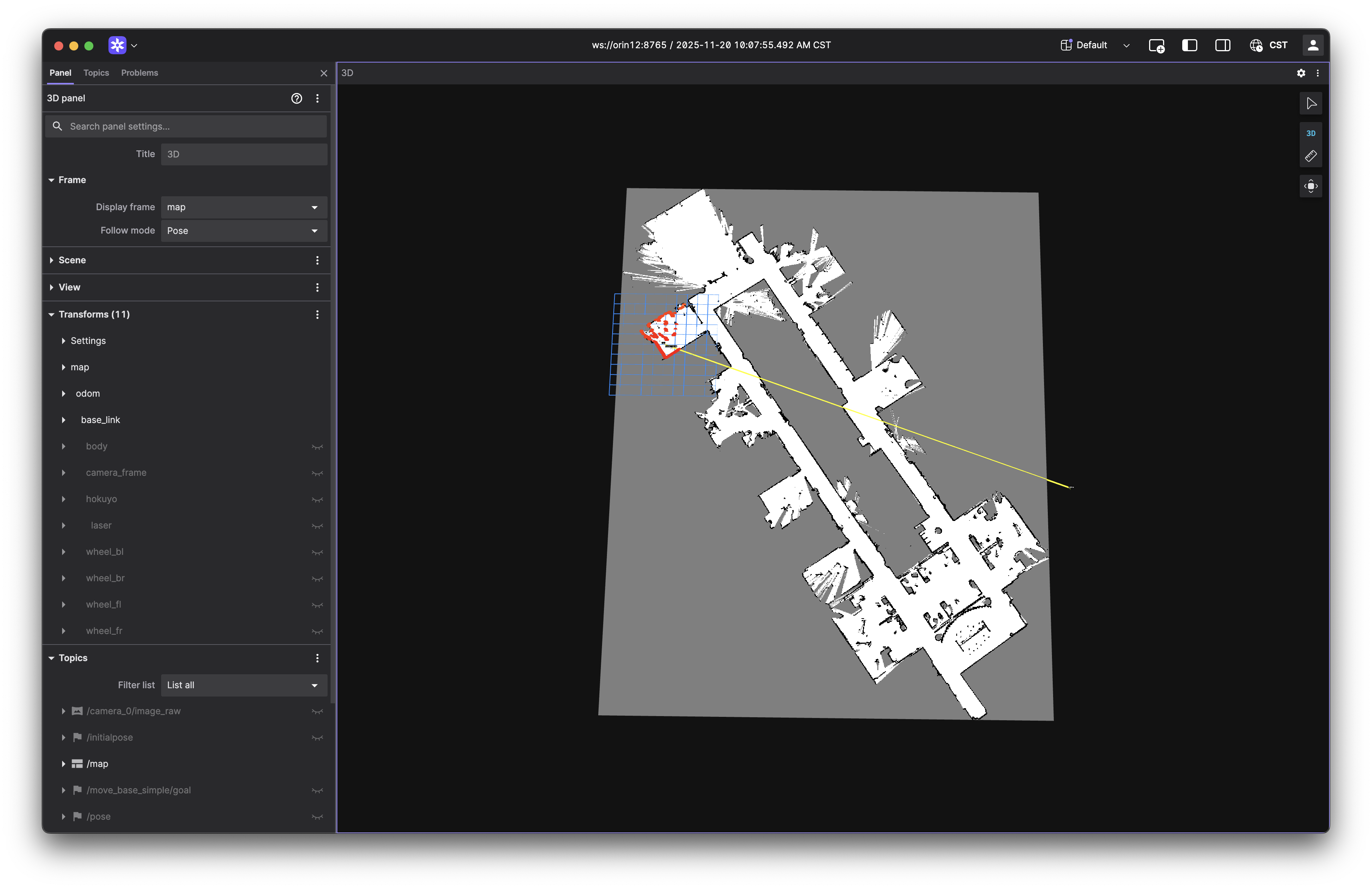
Once the configuration starts, connect Foxglove Studio to the car. In the 3D window, visualize the /scan topic and the /tf tree to see the LIDAR data being published and the robot's frame transformations. Also, enable the /map topic to visualize the map as it is being built.
Teleoperate the car around the environment using the joystick. As you drive, observe how the SLAM algorithm builds the map in real-time. Here is what a sample mapping session looks like in Foxglove:
NOTE: Drive slowly and steadily to ensure accurate mapping. Fast and sudden movements can lead to poor map quality. If you find that the map is not building well, you may need to adjust the parameters of the SLAM algorithm, which are located in
~/roboracer_ws/src/av_navigation/av_navigation/config/slam.yaml.
Once your map is complete, save it using the following command, replacing track with your desired map name:
export MAP_NAME=track  # Choose a name for your map
ros2 run nav2_map_server map_saver_cli -f ~/roboracer_ws/src/av_navigation/av_navigation/maps/${MAP_NAME}
Ensure your map is saved by checking the ~/roboracer_ws/src/av_navigation/av_navigation/maps/ directory for the generated .pgm and .yaml files.
ls ~/roboracer_ws/src/av_navigation/av_navigation/maps/
track.pgm  track.yaml
3. Configure and Run the Navigation Stack with AMCL
Now that you have built a map, you can use it for localization with AMCL. Before running the navigation stack, you need to update the configuration files with your calibrated parameters.
Update the Navstack Configuration
Update the main nav2 configuration file ~/roboracer_ws/src/av_navigation/av_navigation/config/nav2.yaml with your calibrated parameters. Specifically, update the following sections, using your calibrated turning radius value from the previous step, the default is set to 0.8:
Hint: Use the minimum turning radius you measured during the Steering Gain Calibration step. If you did not record it, just use the default value of 0.8.
controller_server:
  ros__parameters:
    FollowPath:
      AckermannConstraints:
        min_turning_r: 0.8

planner_server:
  ros__parameters:
    SmacPlannerHybrid:
      minimum_turning_radius: 0.8
Then update the max_curvature value, which is the inverse of the turning radius. In ~/roboracer_ws/src/av_navigation/av_navigation/launch/twist_to_ackermann.launch.py:
declare_max_curvature = DeclareLaunchArgument(
    'max_curvature',
    default_value='1.25',  # 1/x = 1.25 (x is your minimum turning radius)
    description='Maximum curvature in 1/meters'
)
Run the Navigation Stack with AMCL
Now that you have a map, you can use it for localization with AMCL. The necessary nodes for localization have been configured in the navstack tmuxinator configuration. Launch it from the GUI on the car or ssh into your car and run the commands:
cd ~/roboracer_ws
./container shell
cd ~/roboracer_ws/tmux/navstack/
MAP=track tmuxinator
Substitute
trackwith the name of your saved map if different.
Once the nodes are running, connect to the car using the TurboVNC Client:
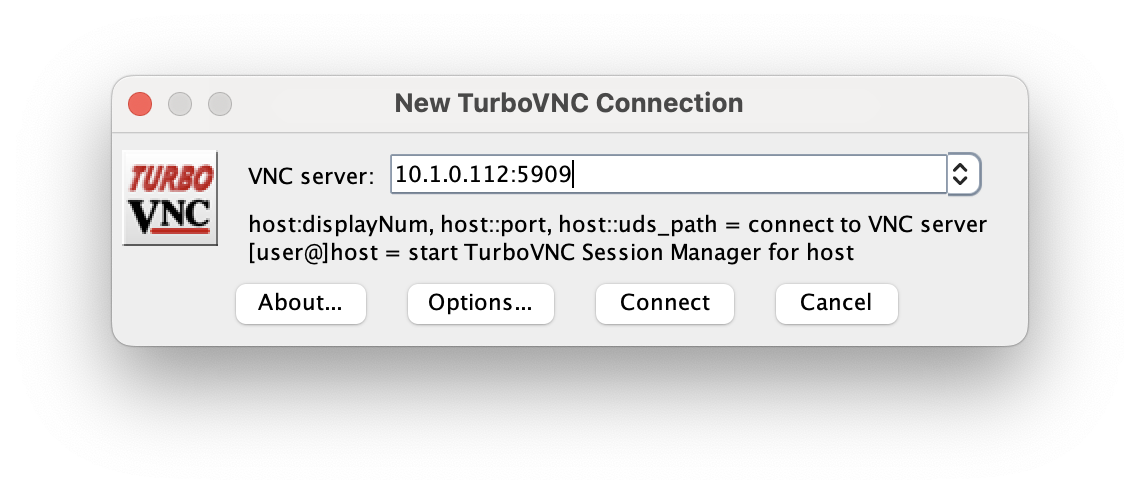
You should see an rviz2 window when you connect to the car via TurboVNC.
If you don't see the
rviz2window, try runningrviz2in the terminal on the car with the command:DISPLAY=:9 ros2 -d rviz2/navstack.rviz
To help AMCL identify the correct position of the car, you should publish an initial pose estimate. This tells the algorithm where to being its search for the cars current location. Click the "2D Pose Estimate" button in the toolbar and click + drag on the map to set the initial pose.
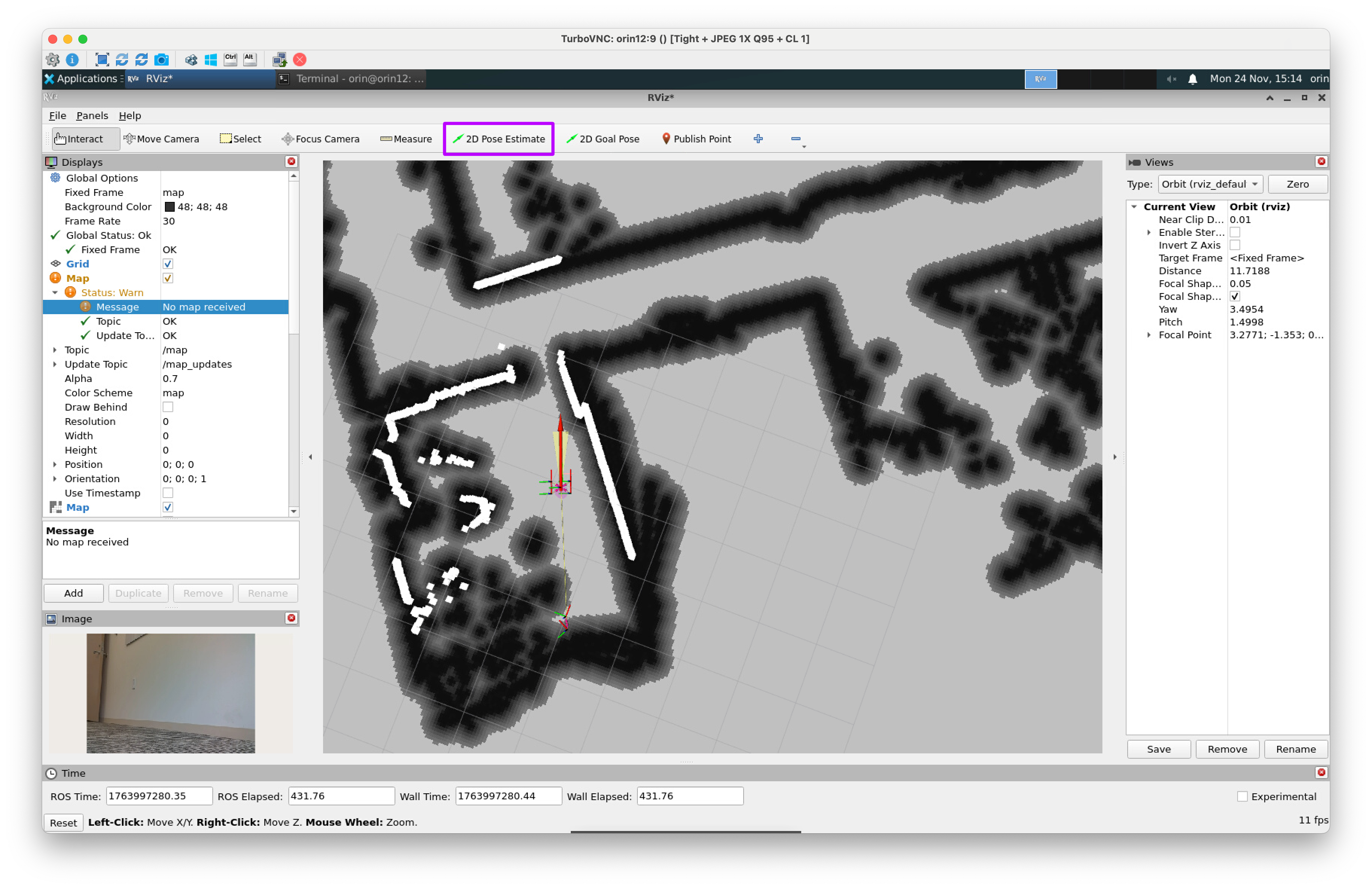
Once you've selected the correct position and orienation for the car, AMCL will begin to localize the car in the environment and you should see the car's position and orientation update in the rviz2 window.
You've now localized the car!
Classical Navigation
Now that the car is localized, we can use the classical navigation stack to make the car move to a specific location on the map.
First, set the desired goal pose by clicking the "2D Nav Goal" button in the toolbar and click + drag on the map to set the goal pose.
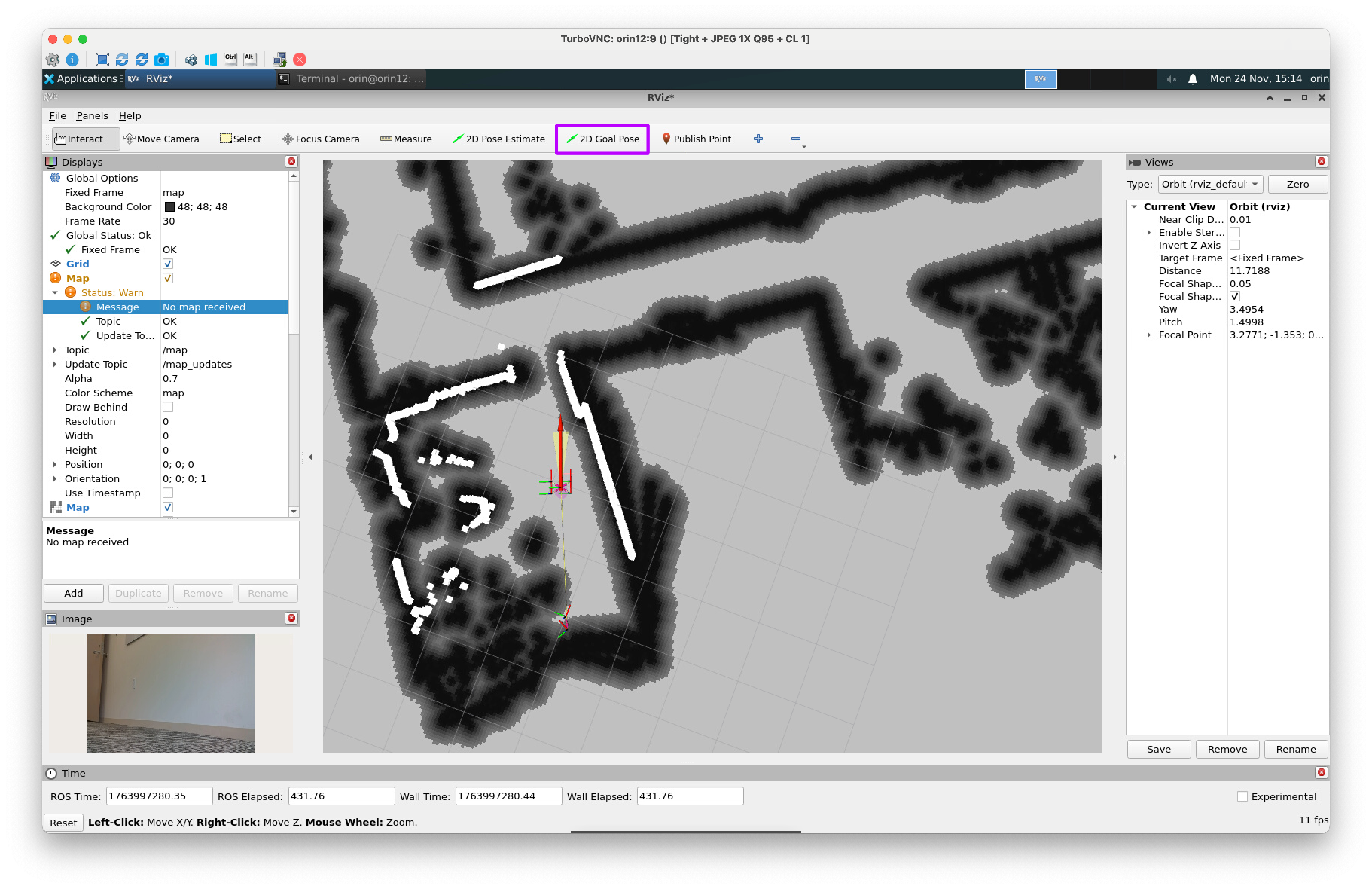
After setting the goal pose, hold the R1 button on the PS4 Joystick to allow the car to move.
Lab Notebook
Record several videos of the car moving to different locations on the map. Observe the car as it moves and identify any issues with the localization or navigation behavior. Try moving to some locations in front of the car and some locations behind the car. How does the car perform in these different scenarios? Write down your observations in your lab notebook.
Follow-up Questions
Respond to the following questions in your lab notebook:
-
Now that your car can localize and navigate to specific points on a pre-recorded map, how would you make the car navigate a racetrack autonomously using the classical navigation stack? What would a python script that could do this look like?
-
What are some issues that you encountered while configuring the localization and navigation stack? How did you resolve these issues?